
Seedance 2.5 AI Video Generator -Videos with Audio
Plan Sound and Visuals for Your Seedance 2.5 Video
Describe speech, ambient sound and music as separate directions in your Seedance 2.5 video brief. Audio output depends on the selected model and the options shown in the generator; check the finished clip rather than assuming sound is included.
Verified prompt
A fearless female driver piloting a futuristic hypercar with aggressive aerodynamic wings and roaring electric power - Races through a modern city while pursued by military drones , camera weaving through skyscrapers and traffic at insane speed; - Drives directly into a collapsing construction site, jumping between unfinished rooftops while drones explode around her, whip pans connecting impossible near misses; - Launches from the final rooftop and crashes through a giant billboard, landing perfectly on the street below as every pursuing drone collides behind her in a spectacular chain explosion, ending with the camera orbiting the hypercar speeding away from the destruction Daylight urban action, insane practical stunts, dynamic blockbuster cinematography, explosive VFX.
A fearless female driver piloting a futuristic hypercar with aggressive aerodynamic wings and roaring electric power - Races through a modern city while pursued by military drones , camera weaving through skyscrapers and traffic at insane speed; - Drives directly into a collapsing construction site, jumping between unfinished rooftops while drones explode around her, whip pans connecting impossible near misses; - Launches from the final rooftop and crashes through a giant billboard, landing perfectly on the street below as every pursuing drone collides behind her in a spectacular chain explosion, ending with the camera orbiting the hypercar speeding away from the destruction Daylight urban action, insane practical stunts, dynamic blockbuster cinematography, explosive VFX.
Verified prompt
Verified prompt
Image1 komutan ve lider olan bir uzaylıdır. Image2 ise asker uzaylıdır.
Image1 komutan ve lider olan bir uzaylıdır. Image2 ise asker uzaylıdır.
Explore Video Workflows
Explore the Seedance 2.5 workflow and compare it with the related video pages. The generator is the source of truth for current model access and settings. Use the prompt library to study published results and the model that created them.
Plan Sound and Visuals for Your Seedance 2.5 Video
Describe speech, ambient sound and music as separate directions in your Seedance 2.5 video brief. Audio output depends on the selected model and the options shown in the generator; check the finished clip rather than assuming sound is included.
Describe speech, ambient sound and music as separate directions in your Seedance 2.5 video brief. Audio output depends on the selected model and the options shown in the generator; check the finished clip rather than assuming sound is included.
Explore Seedance 2.5A Clearer Creative Brief for Seedance 2.5
Turn a Rough Idea into a Focused Brief
Choose only the resolution and aspect ratio shown for the selected model. Check framing, fine details and any text in the completed video. A larger output size does not guarantee a more accurate result.
Explore Seedance 2.5 Video Ideas with youdot
Choose only the resolution and aspect ratio shown for the selected model. Check framing, fine details and any text in the completed video. A larger output size does not guarantee a more accurate result.
Review Model and Input Options
Describe speech, ambient sound and music as separate directions in your Seedance 2.5 video brief. Audio output depends on the selected model and the options shown in the generator; check the finished clip rather than assuming sound is included.
Plan Sound and Visuals for Your Seedance 2.5 Video
Describe speech, ambient sound and music as separate directions in your Seedance 2.5 video brief. Audio output depends on the selected model and the options shown in the generator; check the finished clip rather than assuming sound is included.
Explore Variations with a Focused Brief
Choose only the resolution and aspect ratio shown for the selected model. Check framing, fine details and any text in the completed video. A larger output size does not guarantee a more accurate result.
Explore Related Video Workflows
Explore the Seedance 2.5 workflow and compare it with the related video pages. The generator is the source of truth for current model access and settings. Use the prompt library to study published results and the model that created them.
Plan Sound and Visuals for Your Seedance 2.5 Video
Describe speech, ambient sound and music as separate directions in your Seedance 2.5 video brief. Audio output depends on the selected model and the options shown in the generator; check the finished clip rather than assuming sound is included.
Describe Your Video Concept or Upload Images
For your Seedance 2.5 video brief, describe how the subject should move from its starting pose. If the selected model supports an image or ending frame, use it to explain composition and continuity. Do not assume every reference type is accepted.
Plan Sound and Visuals for Your Seedance 2.5 Video
Describe speech, ambient sound and music as separate directions in your Seedance 2.5 video brief. Audio output depends on the selected model and the options shown in the generator; check the finished clip rather than assuming sound is included.
Review and Download Completed Results
When a request completes, inspect the video in History and download the result you want to keep. Review the composition and any unintended details before sharing it with your team or publishing it.
Experience Professional Video Creation
Choose only the resolution and aspect ratio shown for the selected model. Check framing, fine details and any text in the completed video. A larger output size does not guarantee a more accurate result.
Seedance 2.5 Video Ideas for Your Projects
For your Seedance 2.5 video brief, describe how the subject should move from its starting pose. If the selected model supports an image or ending frame, use it to explain composition and continuity. Do not assume every reference type is accepted.
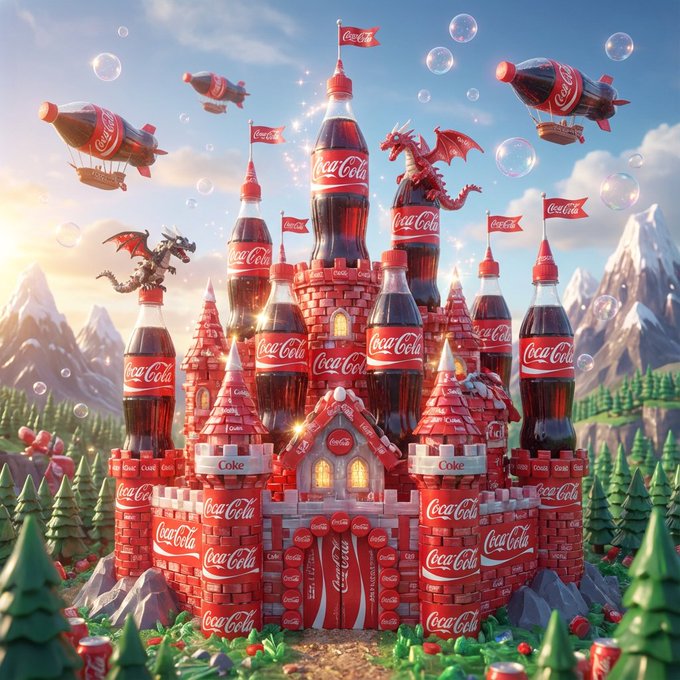
Marketing & Advertising Videos
For a Seedance 2.5 product concept, specify the product shape, material, key detail and setting. Keep logos and claims accurate, allow room for your own typography, and review the result before using it in an advertisement.
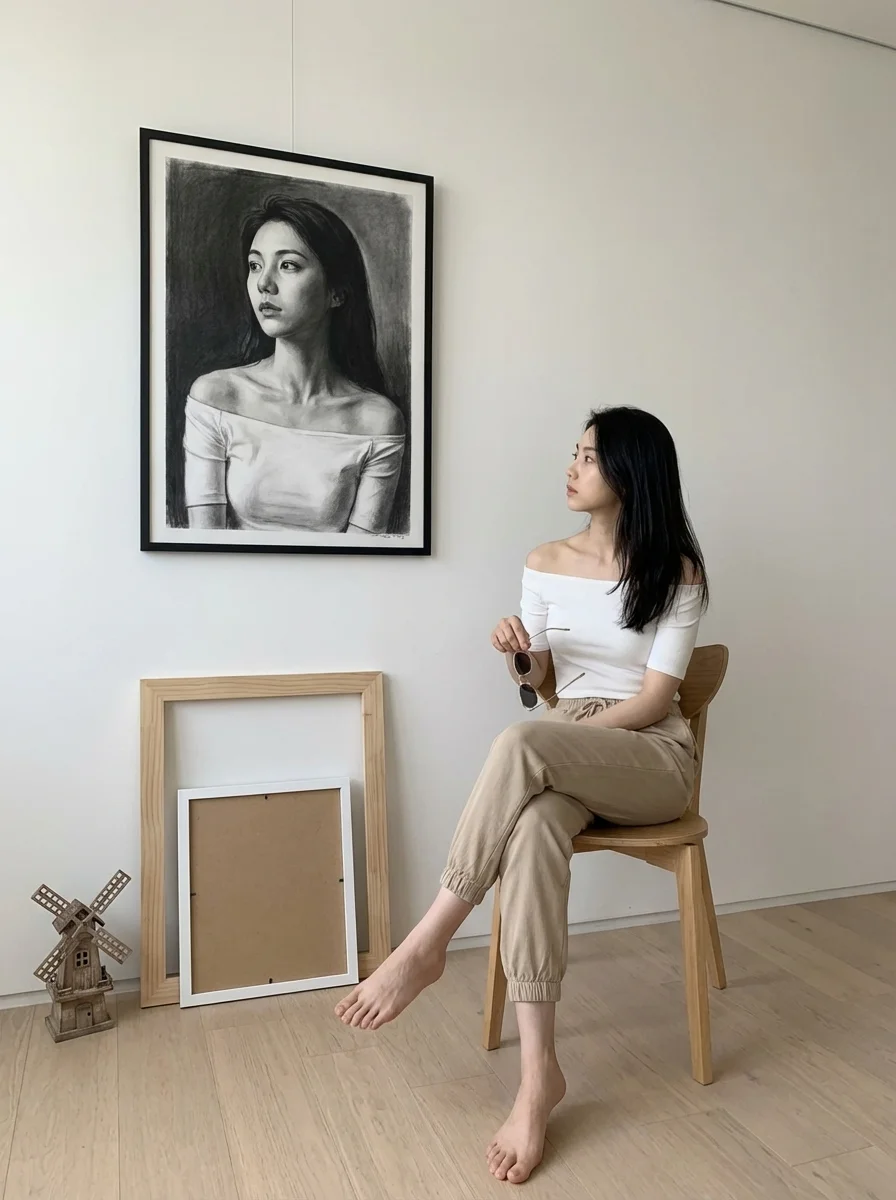
Social Media Content
Plan your Seedance 2.5 social video around one clear message. Decide the framing for the target channel, place the main subject where it stays visible, and check small-screen readability before sharing.
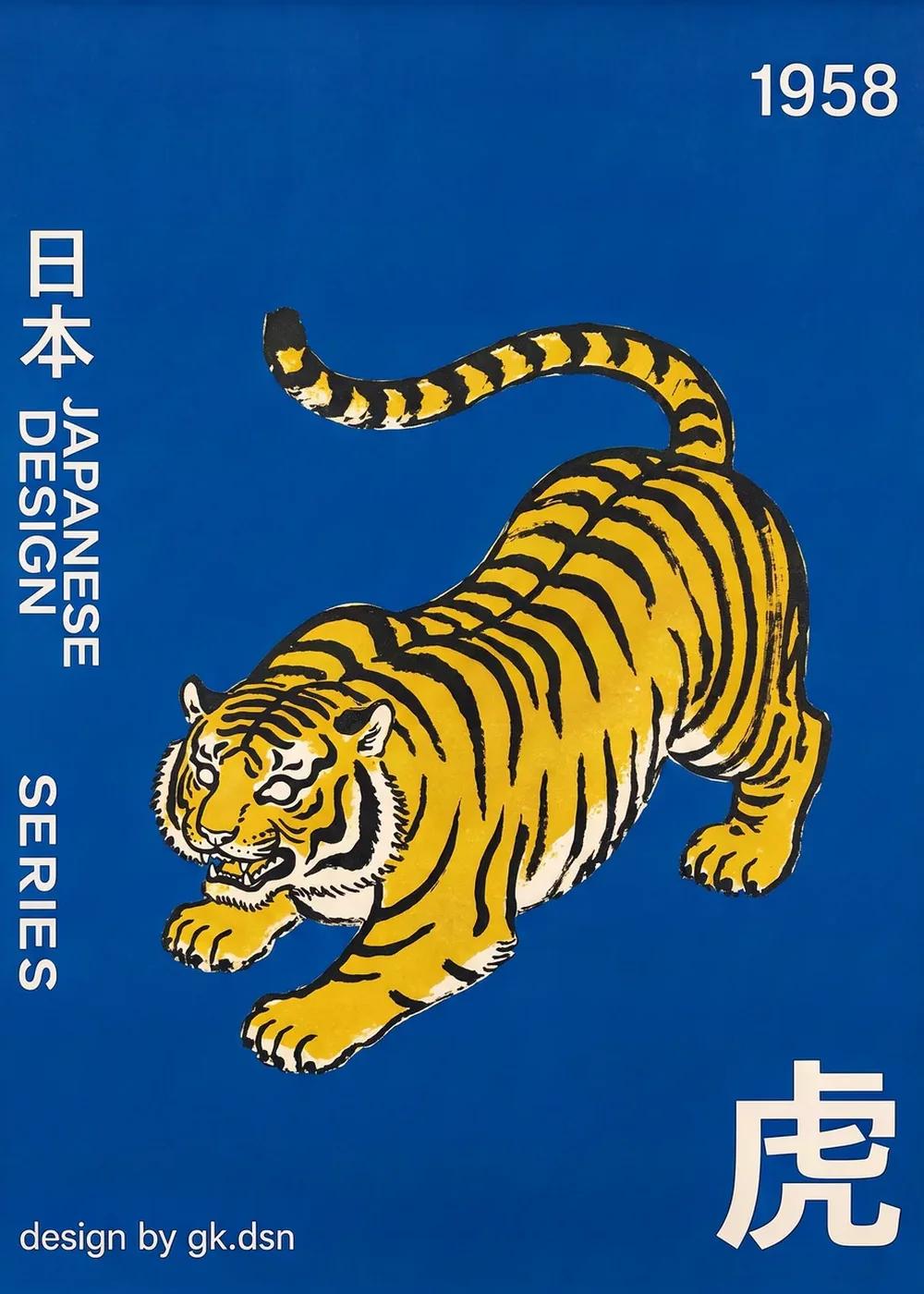
Educational & Training Materials
Use a Seedance 2.5 visual concept to support one teaching or presentation point. Check facts and labels yourself, and add final captions in your editing workflow rather than relying on generated text.

Corporate Presentations & Communications
Use a Seedance 2.5 visual concept to support one teaching or presentation point. Check facts and labels yourself, and add final captions in your editing workflow rather than relying on generated text.
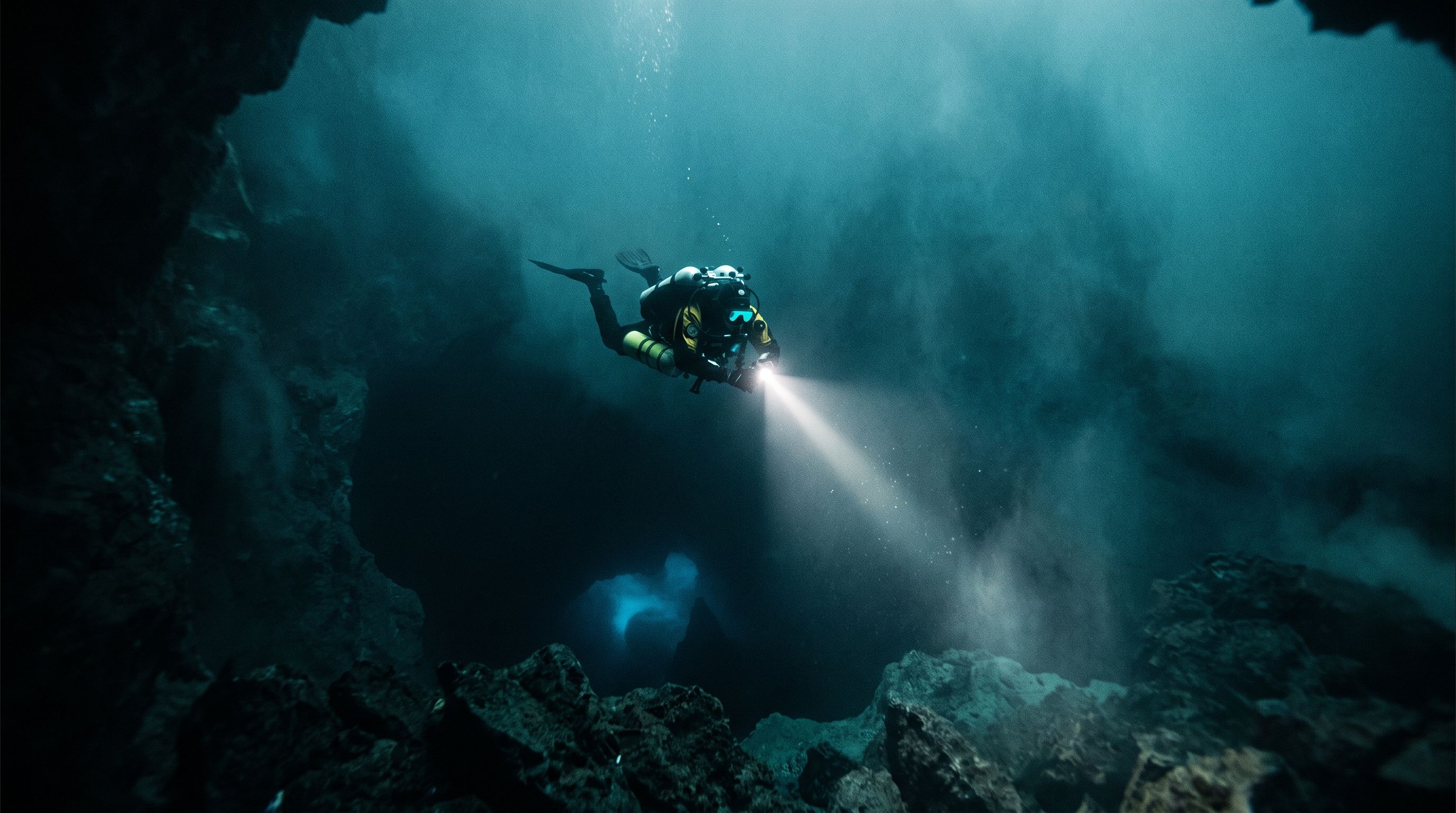
Film & Episodic Content Creation
Break a Seedance 2.5 story concept into short, clearly described shots. Give each shot one action and a camera direction. Review continuity between results before assembling them into a sequence.
Personal Projects & Creative Storytelling
Break a Seedance 2.5 story concept into short, clearly described shots. Give each shot one action and a camera direction. Review continuity between results before assembling them into a sequence.
Creative Notes for Your Seedance 2.5 Video Brief
Give the main subject one clear action. For a Seedance 2.5 concept, a precise brief is easier to assess than a list of competing effects.
Seedance 2.5 Video Workflow: Questions & Answers
This youdot page explains the Seedance 2.5 video workflow. It helps you write a focused brief and review the available inputs. Current access is shown in the generator; a model name on a guide does not mean it currently accepts requests.
The generator shows current model availability. When a model accepts requests, choose its supported settings and review the required credits before submitting. Review your selection and credit balance before generating.
Use youdot in your browser. On a smaller screen, open the navigation menu to move between the generator, prompt library and your account. Supported upload and download behavior also depends on your device.
For your Seedance 2.5 video brief, describe how the subject should move from its starting pose. If the selected model supports an image or ending frame, use it to explain composition and continuity. Do not assume every reference type is accepted.
Prompts, uploaded references and generated results may be stored to provide your history and process requests. Review the Privacy Policy before uploading sensitive material. Published cases and public media links can be viewed by other people.
Choose only the resolution and aspect ratio shown for the selected model. Check framing, fine details and any text in the completed video. A larger output size does not guarantee a more accurate result.
Plan your Seedance 2.5 social video around one clear message. Decide the framing for the target channel, place the main subject where it stays visible, and check small-screen readability before sharing.
Subscriptions renew according to the billing interval shown at checkout. A one-time credit pack is a single purchase, not a subscription. To cancel a subscription, open Settings > Billing, choose your subscription and confirm cancellation. Check the updated status and end date. If cancellation fails, contact support@youdot.app before your next renewal.
Cancellation stops future subscription renewals once confirmed. Check Settings > Billing for your paid access end date. Existing credits keep their original expiration dates; cancellation does not extend them or automatically issue a cash refund.
You can request a refund within 10 days of purchase if you have unused credits from that purchase and provide a clear reason, subject to our Refund Policy. If eligible, an unused purchase can be fully refunded; a partly used purchase is refunded in proportion to its remaining unused credits. Fully used purchases and free or promotional credits are not refundable.
Email support@youdot.app with the subject Refund Request. Include your account email, order or transaction ID, purchase date and reason. Our Refund Policy provides for a response within 5 business days. Approved refunds return to the original payment method and may take 5–10 business days to appear, depending on the payment provider. The corresponding credits are removed. See /refund-policy for the full conditions.
Credit validity depends on the pack, subscription or promotion that issued them. Review the purchase terms and expiration dates in Settings > Credits. A renewal or new purchase does not extend older credits. Use credits before their stated expiration; do not assume unused subscription credits roll over indefinitely.
Credits charged for a task that is confirmed as failed due to a system error are returned automatically. A task that is still processing has not yet been confirmed as failed. Check its status and your credit history before submitting again. If a confirmed failure still shows an unresolved charge, email support@youdot.app with the task ID.
AI results can vary, so a completed result that differs from your expectations is not automatically treated as a technical failure. Eligible completed image tasks can be submitted for credit refund review using the refund option where available; approval is required. For a video or another issue, contact support@youdot.app with the task ID and details. A credit refund returns credits, not money to your payment method.
Check that you are using the same account or guest browser used for checkout, then review your order status and credit history. Avoid paying again while the first payment is being checked. Email support@youdot.app with your order ID, purchase time and payment receipt so we can investigate. Never send your password or full card details.
Email support@youdot.app. For billing, include your account email and order ID; for generation, include the task ID, issue description and relevant screenshots. If you purchased as a guest, keep the original browser data and payment receipt so we can help locate the purchase.
Plan Sound and Visuals for Your Seedance 2.5 Video
Describe speech, ambient sound and music as separate directions in your Seedance 2.5 video brief. Audio output depends on the selected model and the options shown in the generator; check the finished clip rather than assuming sound is included.
youdot.app · Updated
What's new on this page
- — Added editable example prompts and separate drafts for text and reference modes, with an action to restore the example.
- — Updated page copy and content.
- — Page content published.