
Social-post concept workshop
AI Halloween Costume Transformation with one clear idea
Bring one costume idea into motion
History
Loading history…
Your questions, answered
What is AI Halloween Costume Transformation?
It creates a short costume-reveal video guided by an adult portrait and a written costume direction. Name the garment, setting and one movement, then review how the person and outfit remain readable through the clip.
How do I start?
Choose reference-based video mode, upload one clear adult portrait and describe a single costume. Add a restrained turn or cape movement, review the available settings and quote, then generate. Text to Video uses a described character without uploaded references.
Can I try it for free?
Check your current account credits and the selected model’s access conditions. When the available balance covers the quoted job, you can generate without buying more credits.
What do I upload?
Use a well-lit adult portrait with the face unobstructed and enough upper body for the planned framing. Ordinary clothing is suitable. A relaxed pose makes it easier to separate the starting person from the new costume direction.
How much does it cost?
Read the live credit quote for the selected model and settings before submitting your costume-reveal clip. Preparing inputs or editing a description does not start a generation.
When is the result ready?
Follow the submitted job’s estimate and progress. The model, settings and queue affect waiting; History keeps the completed clip available for review and download.
Choose the costume detail you want a viewer to remember. With youdot.app's AI Halloween Costume Transformation, an adult portrait and a short wardrobe brief become the starting point for a cinematic reveal. A dark celestial gown, a flowing cape or a bright pumpkin-inspired outfit each needs a different silhouette. Pick one idea, plan a gentle movement and leave enough space for the garment to show.
Generate costume reveal video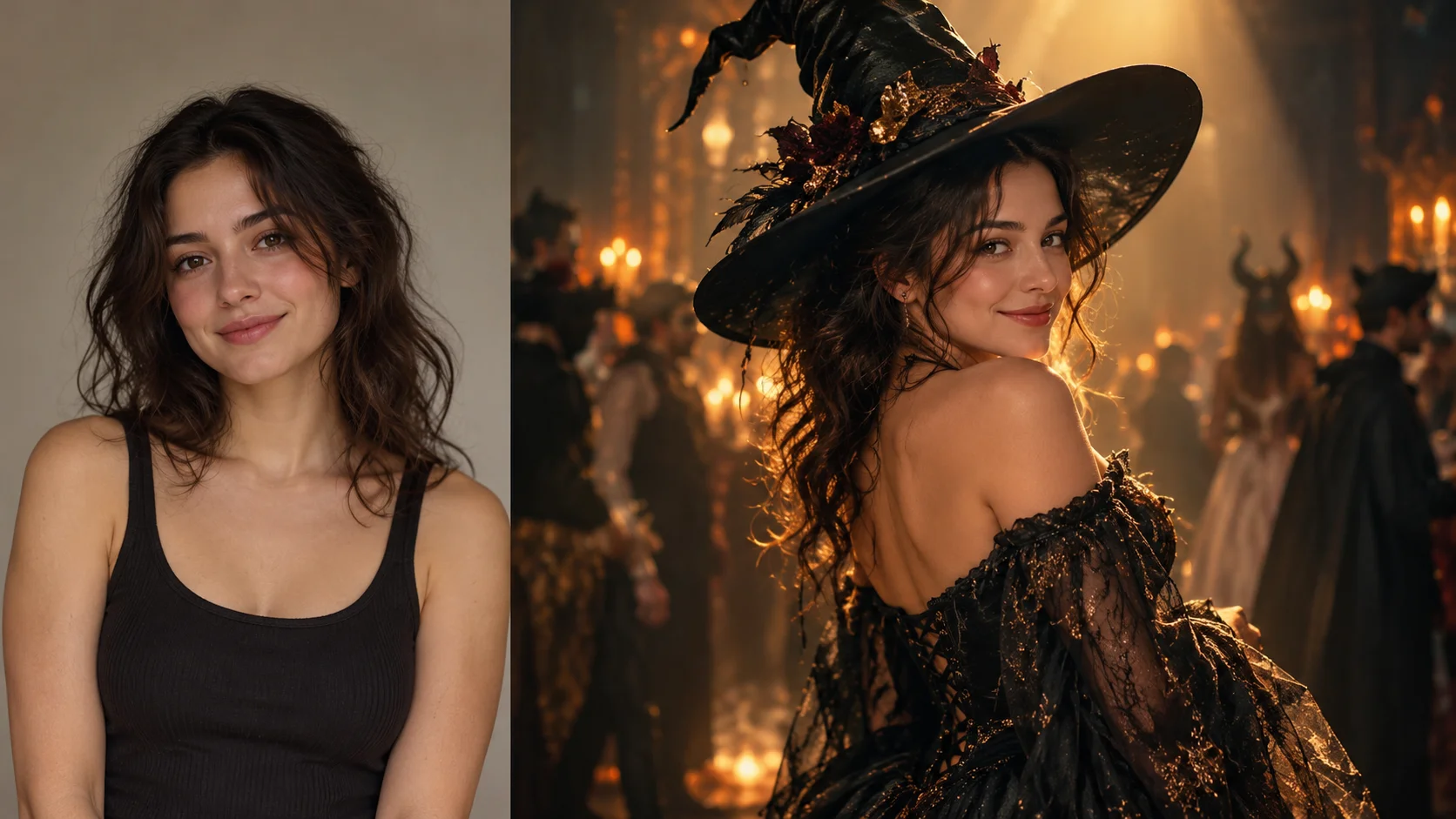
How a costume reveal comes together
Upload one adult portrait
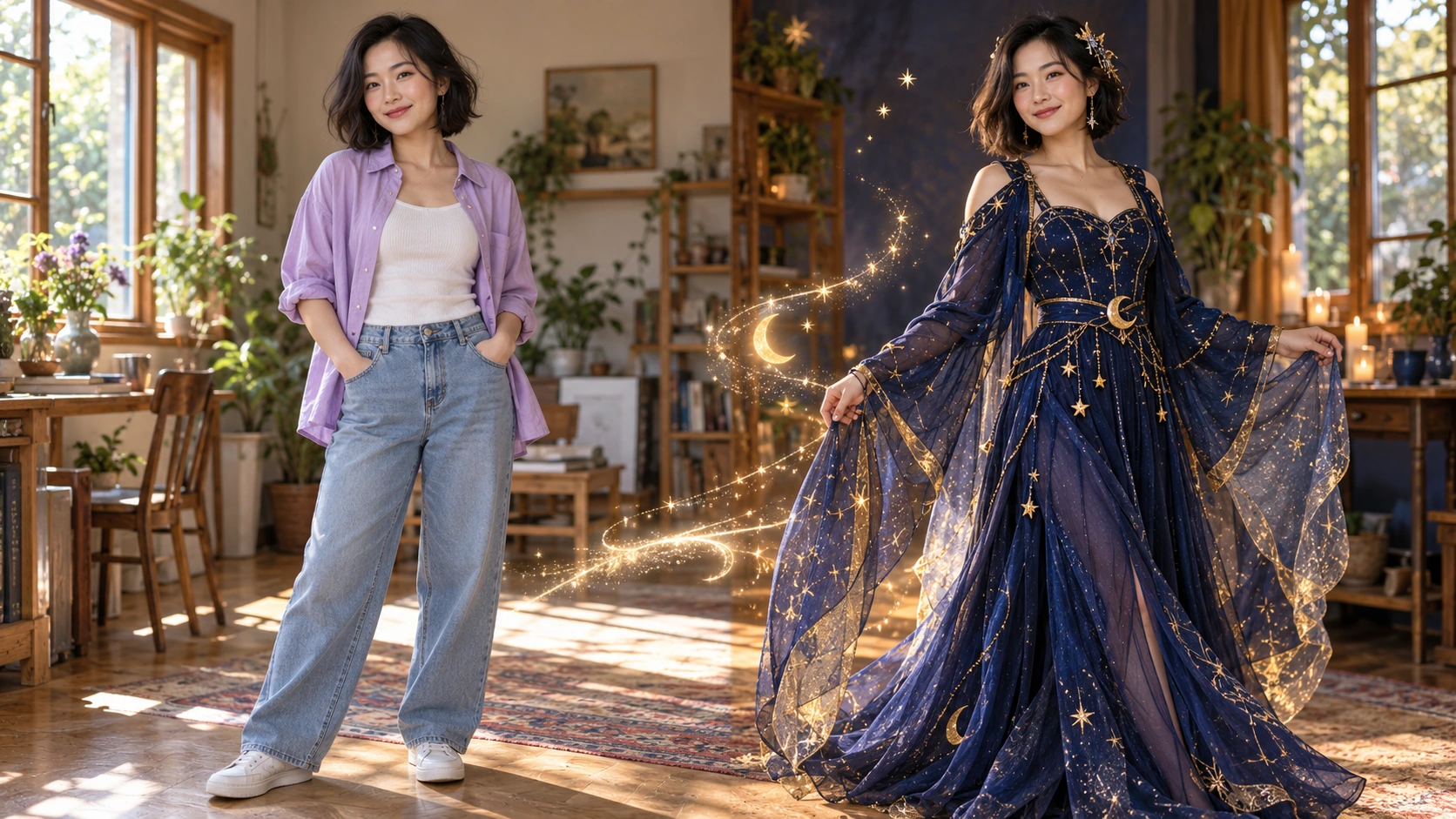
Choose a clear adult reference photo where the face is easy to read. Avoid heavy filters, strong blur or crowded backgrounds. Write a costume description you can edit later: garments, colors, textures, accessories and the piece you want a viewer to remember. Keep expectations practical about face preservation.
Set the costume direction
Rework the prompt until the costume reads clearly. Add scene details such as venue, season and light direction, plus pace for the slow turn and the atmosphere you want to hold. Use the available model controls for the look you need. Keep one strong idea rather than stacking several costumes.
Quote, generate, review
The live credit quote appears before you generate, so read it first. Sign in to your account, start the job and let it finish. Open History to review the video, compare versions and keep the take worth posting. Check the costume readability and face handling with reasonable expectations rather than assuming a perfect likeness.
What the output gives you
A short cinematic costume reveal
The video aims for a compact social-ready moment: a slow turn that shows the outfit in motion, then a beat of atmosphere around it. You describe the costume and the scene; the generation handles the pacing and framing so the reveal feels deliberate rather than a static costume photo.
Editable costume description
The costume prompt stays yours to adjust between runs. Change one layer, swap an accessory, shift the palette or name a different venue for the reveal. Small edits help you see what reads clearly on camera before you commit to a final version.
Face kept practical
One adult reference portrait guides the person in the video. The aim is a recognizable, practical face, not a guaranteed match. Review each result in History for likeness, costume accuracy and motion, then decide whether to keep the take or adjust the prompt and generate again.
One idea, different costumes
A museum night guard reveal
A guard costume with a long coat, a torch and a confident slow turn under low gallery light. The memorable idea is the quiet authority, so keep the frame simple and let the uniform carry the joke.
A vintage film star entrance
Old Hollywood styling with a satin gown, gloves and soft spotlight. The slow turn becomes the whole post. Describe the fabric shine and the warm light so the reveal feels like a red-carpet moment.
A botanical garden spirit
Layers of leaves, moss tones and a mask that hints at a garden ghost. Set the scene in damp evening air with green light. The single idea is nature reclaiming a costume, so avoid extra props.
Before you generate

- Use a portrait where the face is clearly lit and unobstructed, then describe the costume in specific layers.
- Read the live credit quote each time before starting the job, and check History after generation.
- Treat face preservation as practical, and review the slow turn for costume readability rather than exact likeness.
Turn the wardrobe idea into one visible action
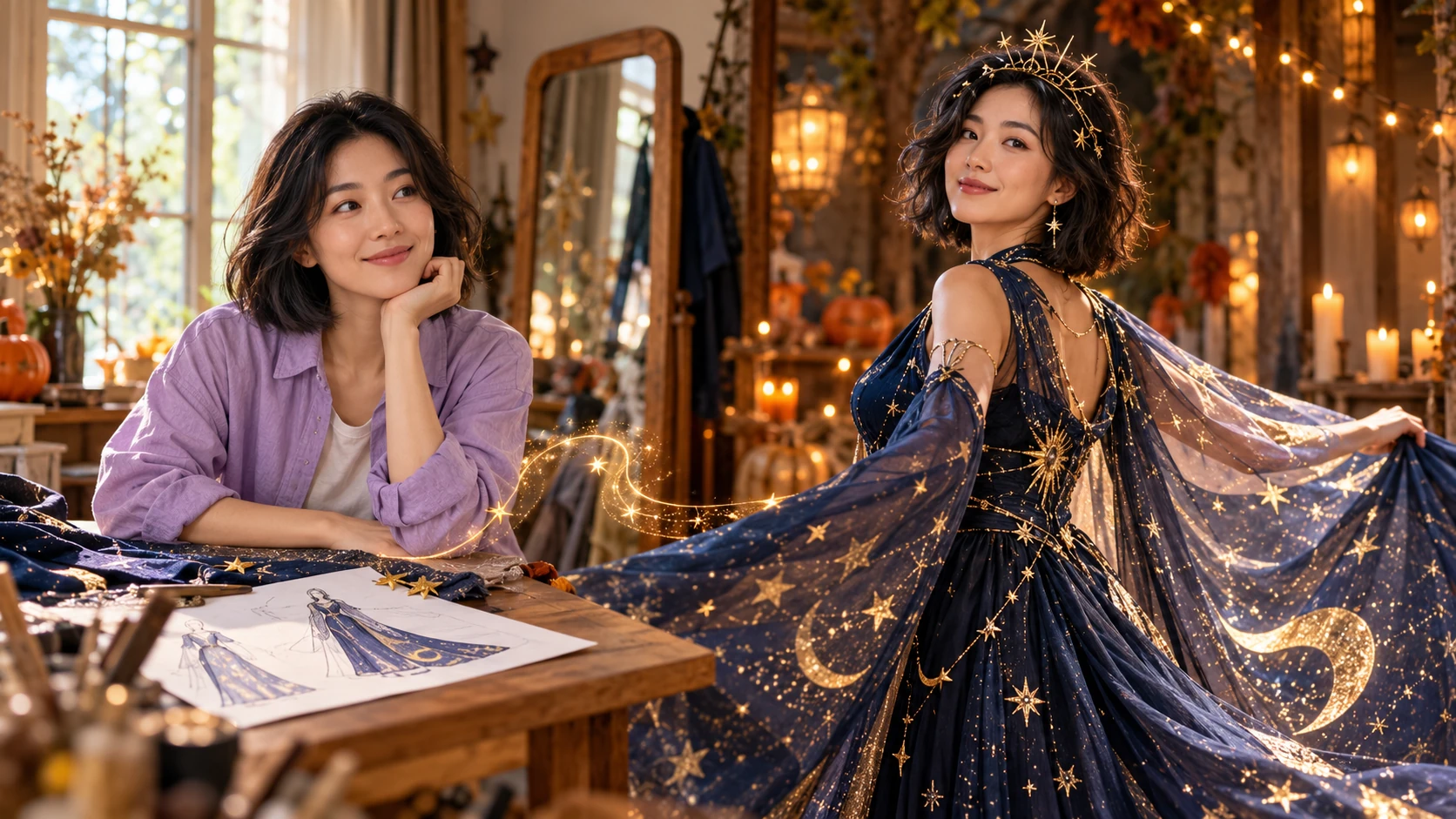
A drawing of a costume and a moving costume answer different questions. The planning view pairs a portrait and a garment sketch with a flowing cape reveal so you can see the difference between choosing the outfit and showing it in motion. Start with the feature that matters: a star pattern, a broad collar or the hem of a long gown. Describe a movement that makes that feature visible, such as a small turn or one opening sweep of the cape. Keep the camera simple. A rapid spin, a moving viewpoint and several accessories can all compete with the detail you wanted to show.
The still comparison uses an ordinary lavender outfit and a midnight-blue celestial gown; the video preview explores a separate pumpkin-and-straw direction. Treat them as different costume ideas rather than consecutive shots from one performance. For your own run, keep one garment brief throughout the attempt. Review the face during the turn, the connection between the hands and fabric, and the shape of the costume at the ending. If the garment hides the expression, revise the collar or reduce the movement before changing the entire scene. Compare that focused adjustment in History and keep the clip whose reveal remains clear at normal phone-post size.
Costume reveal questions
What does an AI Halloween Costume Transformation produce?
It produces a short cinematic video built from an adult portrait and an editable costume description. The result shows a slow turn with costumed atmosphere. It is designed for a social post, not a full costume design spec.
What input does the generator need?
One adult reference portrait plus a written costume description. Clear lighting and simple backgrounds help. You can edit the prompt before generating, so adjust garments, colors and scene details as needed.
Can I control the costume direction?
Yes, through the editable prompt and the available model controls. Describe the costume, venue, light and pacing. Keep to one memorable idea, then change one detail between runs to compare results in History.
Will the face be preserved exactly?
Treat face preservation as practical, not guaranteed. The reference guides the result, so likeness can vary between jobs. Review each video for face handling and decide whether to adjust the prompt or the portrait.
Where do I see the credit quote and history?
The live credit quote appears before generation. You sign in to your account to start a job, then find finished jobs in History.
Create your costume reveal
Upload one adult portrait, write your costume idea, check the quote and generate a short reveal video.
Generate costume reveal videoContinue with a related creative guide

youdot.app · Updated
What's new on this page
- — Added editable example prompts and separate drafts for text and reference modes, with an action to restore the example.
- — Page content published. Updated page copy and content. Updated page images or videos. Updated page generator or navigation settings.