
Closed On Sunday AI
Create your choir scene
Preview the fixed choir reference
This fixed video supplies the choir performance and camera reveal. Your lead image supplies the central appearance; the optional choir image directs the surrounding cast.
History
Loading history…
Your calm expression, an unusually enthusiastic crowd
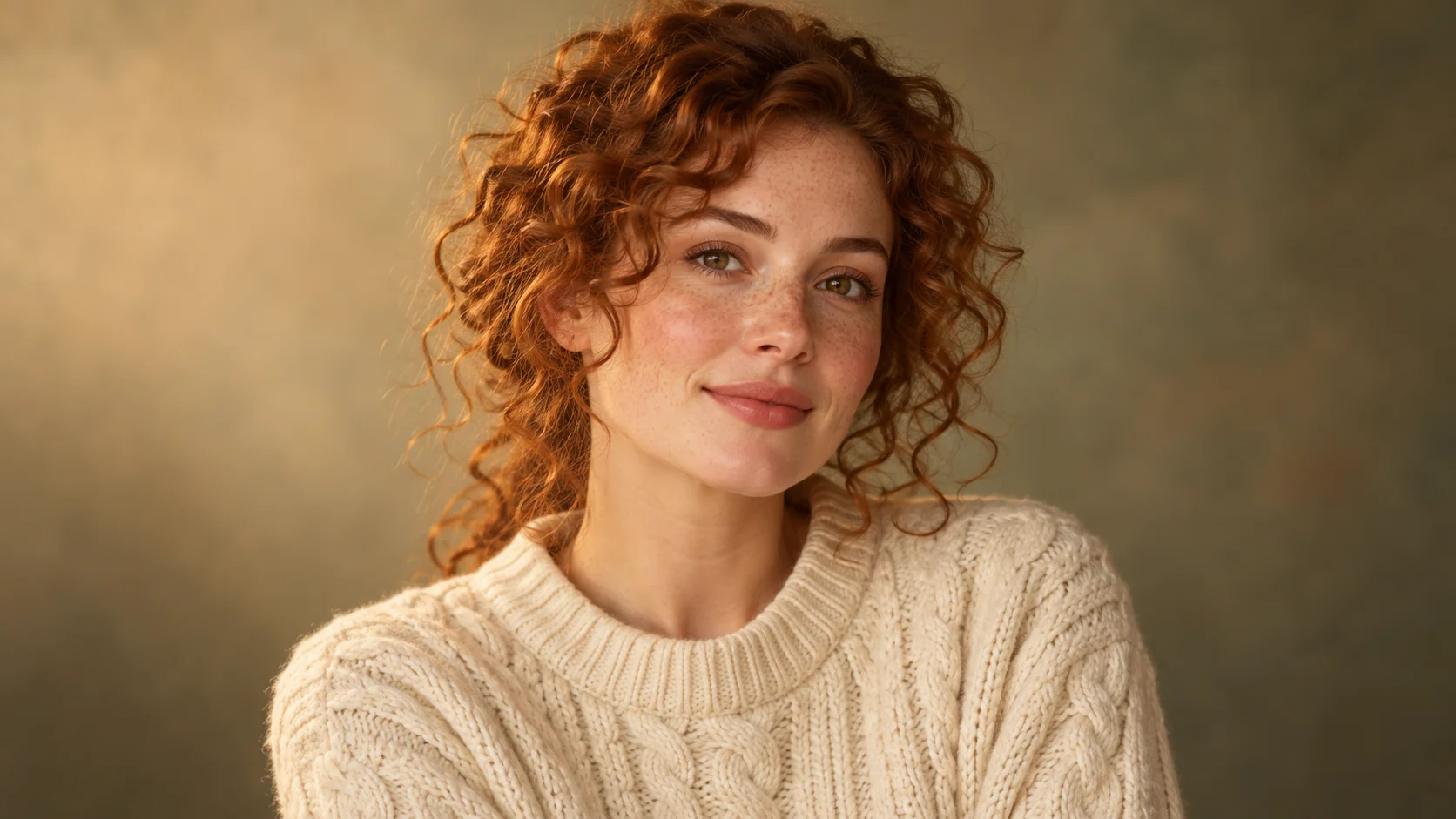
Some reactions are funnier when the main person barely reacts at all. Closed On Sunday AI puts your portrait at the quiet center of an energetic choir. Pick one clear lead photo, then choose who fills the surrounding rows. Our cream-sweater portrait and scarf-wearing alpacas show a warm, playful direction for a personal meme.
The lead image identifies the central subject. A separate optional choir image or a short description sets the surrounding cast. The supplied reference guides the performance, with a fourteen-second initial output setting. You do not need to film yourself or upload an additional action video for this fixed scene.
How to create your Closed On Sunday AI remake
1. Pick the recognizable face
Choose a portrait your audience will recognize quickly. Keep eyes and mouth visible, with natural lighting and enough shoulder detail to establish the outfit. A relaxed expression suits the quiet-center idea better than an extreme pose that already dominates the image.
2. Choose the crowd around you
Think of one ensemble that fits your joke. The guide uses cream alpacas with green scarves, but your cast can be different. Describe it in the optional notes or add a clear character image to the choir slot. Keep that file separate from the lead.
3. Check before creating
Play the reference and confirm that its pacing fits the idea. Inspect the upload roles, output settings and live credit estimate. If you adjust a setting, review the refreshed quote. Account access follows the current policy; this guide does not promise a free take.
4. Select a clip that reads naturally
Open the finished video in History. Watch the central face, then the nearest choir row and the wider ending. Keep the take where the person remains recognizable and the surrounding activity supports the joke. Listen to the audio before saving or sharing.
Choose a portrait that can stay quiet
The cream-sweater study keeps the face open and the expression restrained. Curls and freckles give the lead personality without requiring a dramatic pose. You can use a different look, but avoid a hand across the mouth, a heavily tilted camera or an accessory hiding the eyes. The viewer should be able to understand the central reaction before noticing the more unusual characters behind it.
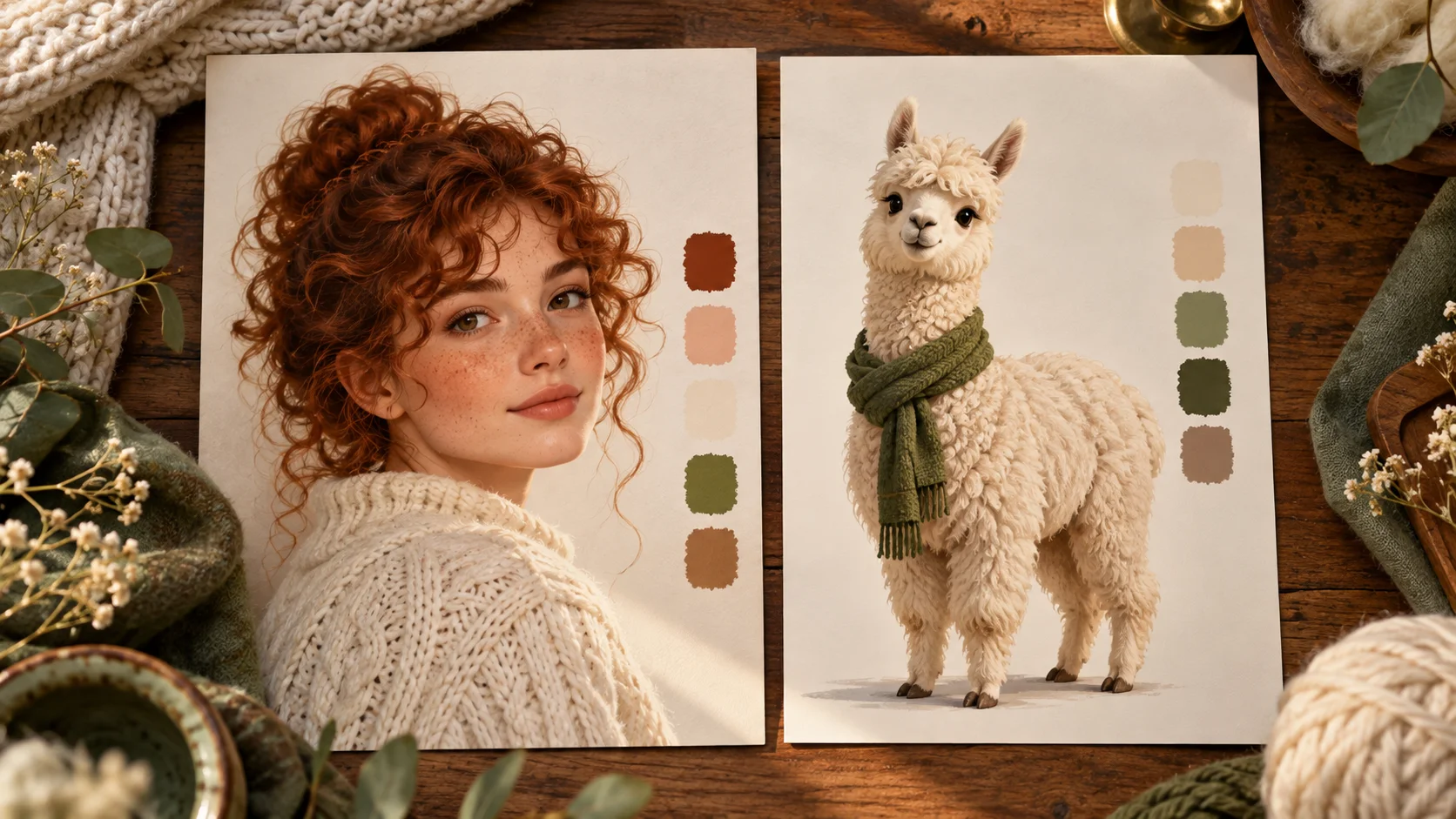
A busy photo can still be a useful memory, but a simpler crop often makes a better appearance reference. Keep enough space for the hair and shoulders while removing unrelated people. Do not upload the two-card guide illustration as one source. It explains the difference between roles; the form needs the portrait in the lead slot and any alpaca or other choir reference in the optional slot.
Make the crowd idea easy to explain
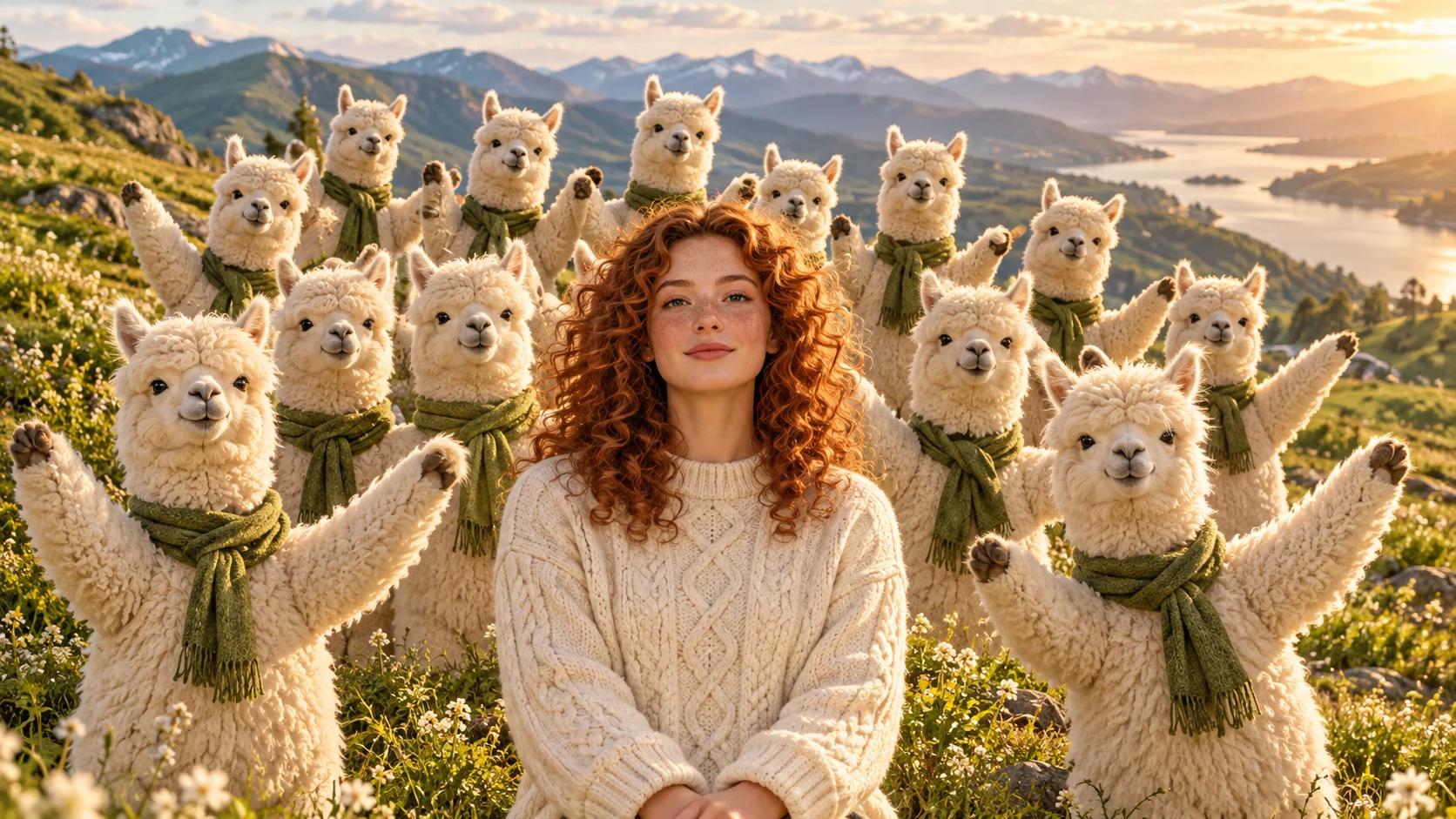
One clear ensemble usually carries a personal joke better than several competing concepts. Our alpacas share a pale coat and green scarf, so the group feels connected without copying the lead's curls or sweater. In the optional notes, name the surrounding character and a small number of useful details. If you add a choir image, make the description agree with its main features rather than contradicting them.
The illustrated hillside is a possible creative treatment, not a guaranteed location or a returned video frame. The fixed reference provides the movement structure, and the model interprets your appearance inputs within it. Expect variation in faces, scarf folds and crowd spacing. If the cast overwhelms the lead, simplify the notes or choose a choir design with a more distinct silhouette.
Keep the joke clear on a small screen
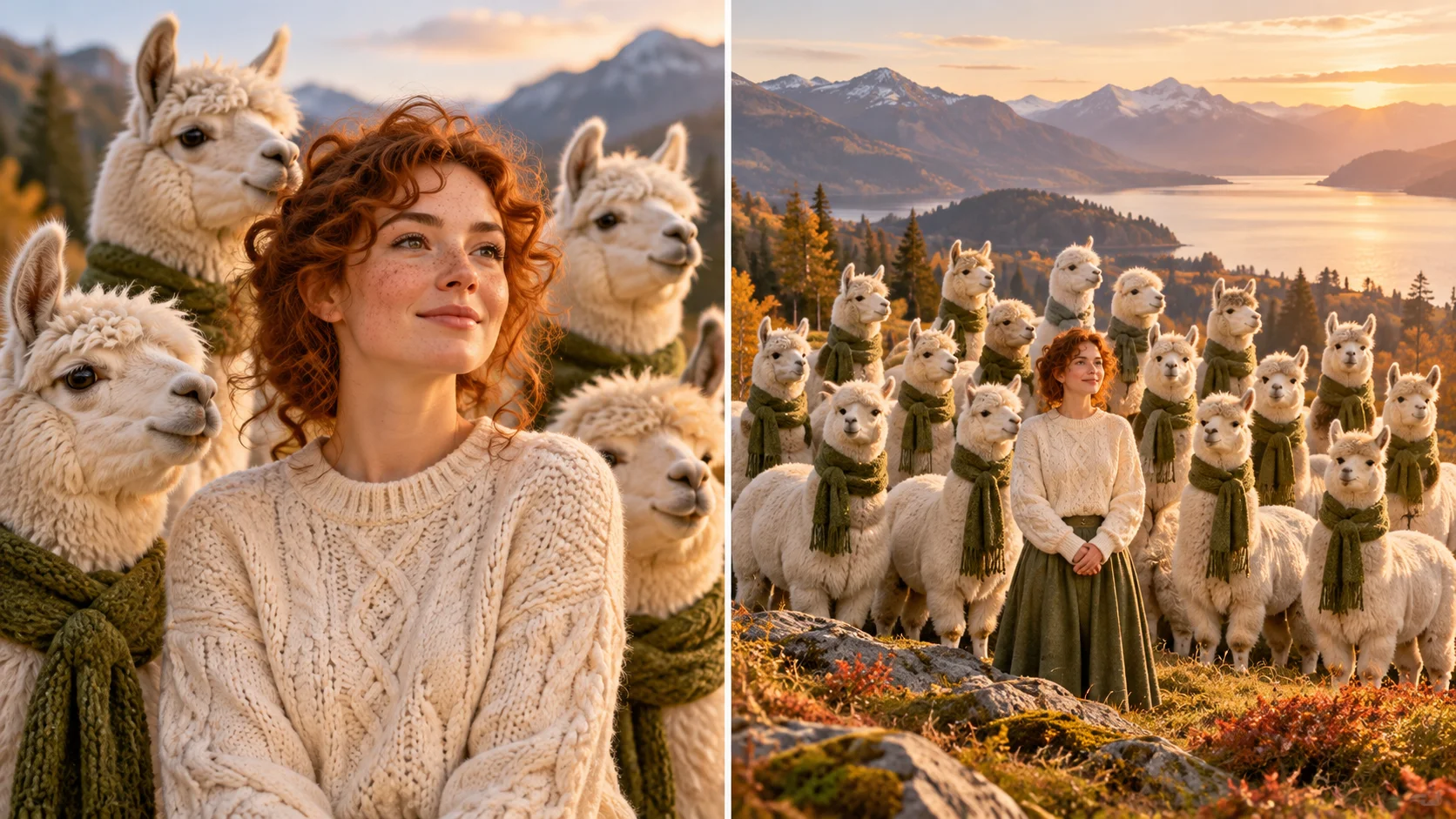
The close and wide study gives a simple review order: recognize the person, understand the surrounding cast, then notice the contrast in energy. Your actual clip should remain understandable when played at phone size. Check that the lead does not disappear behind the nearest alpaca, suddenly change expression or blend into a repeated crowd face as the camera reveals more of the scene.
A short caption added after generation can provide personal context, such as a calm reaction to an overexcited group chat. Place it where it does not cover the face or the nearest row. Play the video muted once, then listen to the finished audio. Exact songs, voices and synchronization are not guaranteed, so judge the result you receive rather than assuming it will reproduce a familiar recording.
Input, cost and result questions
Do I need to record a video of myself?
No. This page includes a fixed performance reference. Start with a clear lead image and add choir direction only if you want to customize the surrounding cast.
Can I skip the choir image?
Yes. It is optional. You can describe the ensemble in text, or leave custom cast inputs blank and follow the supplied reference cast.
Can I put a pet in the lead role?
A clear pet image can be used as an appearance reference. Keep the face and markings visible, and review how the model interprets the animal in the completed scene.
How long is the initial output?
The page starts at fourteen seconds. Its fixed reference is about 13.72 seconds. Queue and processing time are separate from the length of the returned clip.
Where do I find my result?
Check task progress and open the completed take in History. Inspect the whole clip, including sound, before choosing a version to share.
Will it use the exact music I expect?
Exact music and vocals are not promised. Preview the returned audio and use your editing workflow for any specific soundtrack you want to add.
Explore another part of the workflow
Prepare a portrait or cast
Create clearer appearance references before building the choir scene.
Try another video idea
Explore a new setup when your next joke needs different movement.
Review current access
Check account options and plan your generation budget.
youdot.app · Updated
What's new on this page
- — Added photo inputs, a motion reference preview and guidance for creating this video effect.