
A social-post concept workshop
Make a fictional Bigfoot video with the Bigfoot Video Generator
Make a fictional woodland moment
History
Loading history…
Your questions, answered
What is Bigfoot Video Generator?
It creates a short fictional Bigfoot-themed video from a scene description. Text to Video needs only your written brief; a separate reference-based mode can use a landscape or character image to guide the visual direction.
How do I start?
In Text to Video, describe the setting, camera and one creature action without uploading media. Switch to reference-based video mode when an image should guide the terrain or character, add the reference there, then review the quote before generating.
Can I try it for free?
Check your current account credits and the selected model’s access conditions. When the available balance covers the quoted job, you can generate without buying more credits.
What do I upload?
No image is needed in Text to Video. For reference-based video, choose a clear woodland scene with space for the creature to move, or a character view with a readable expression and silhouette. Use the reference that serves your main idea.
How much does it cost?
Read the live credit quote for the selected model and settings before submitting your fictional Bigfoot clip. Preparing inputs or editing a description does not start a generation.
When is the result ready?
Follow the submitted job’s estimate and progress. The model, settings and queue affect waiting; History keeps the completed clip available for review and download.
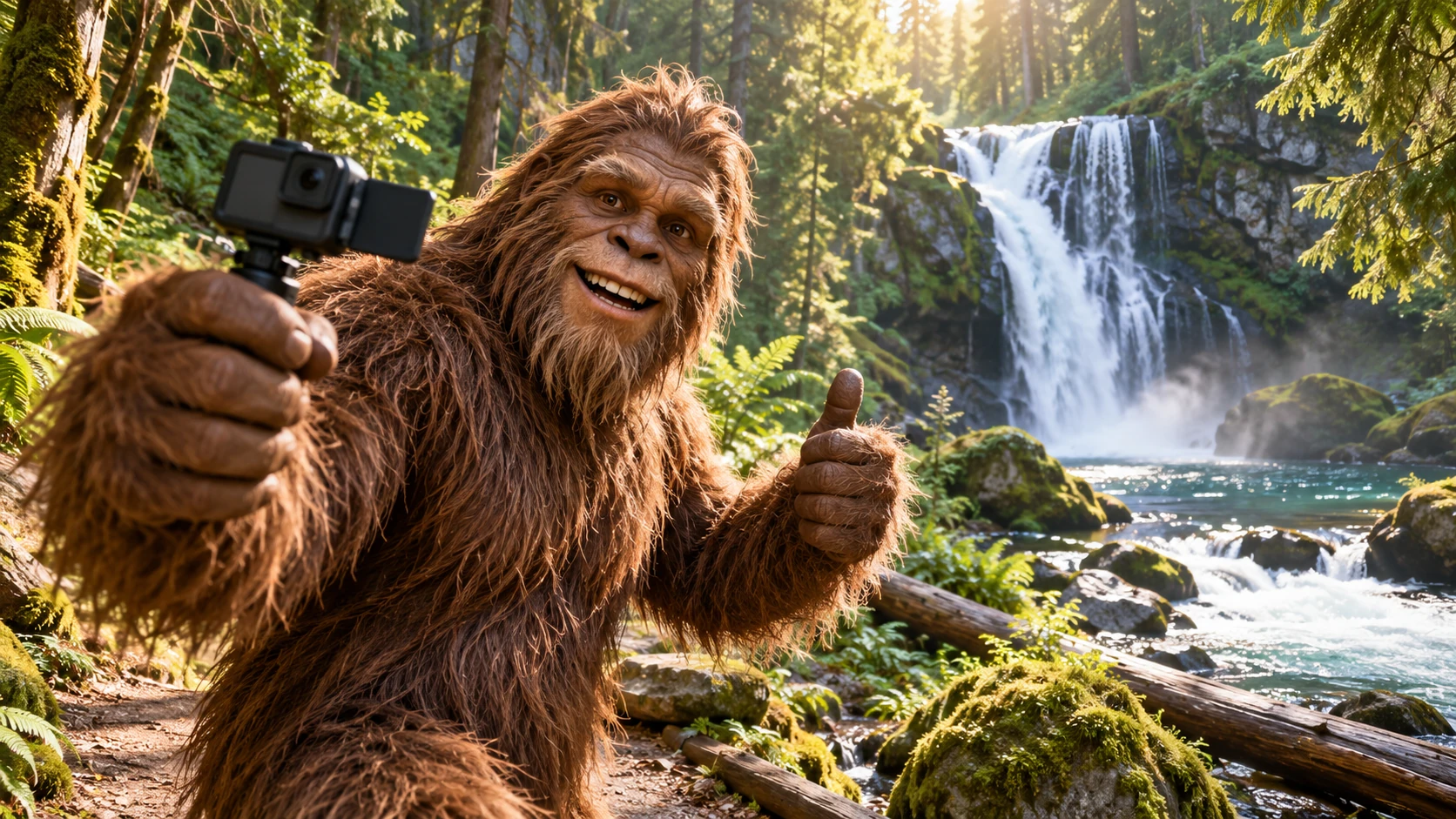
Give a woodland character one small, memorable moment. The Bigfoot Video Generator on youdot.app can turn a written scene into a fictional trail encounter or a close-up vlog. A waterfall path supplies a setting; a wave or a thumbs-up supplies the action. Keep those choices simple enough to read in a short clip, then compare the pacing and expression in History.
Create a Bigfoot video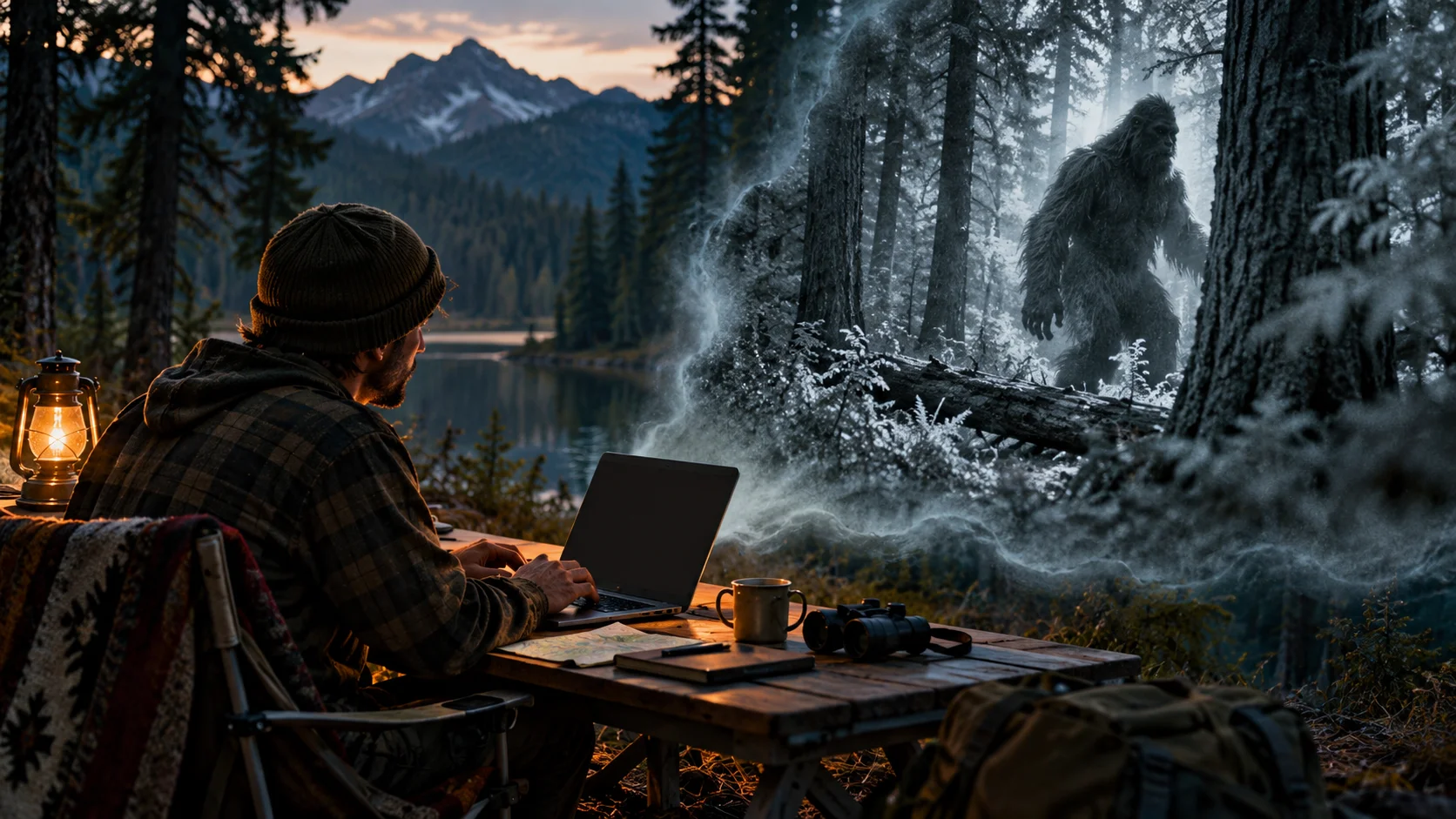
From a one-line idea to a clip
Start with a prompt or reference
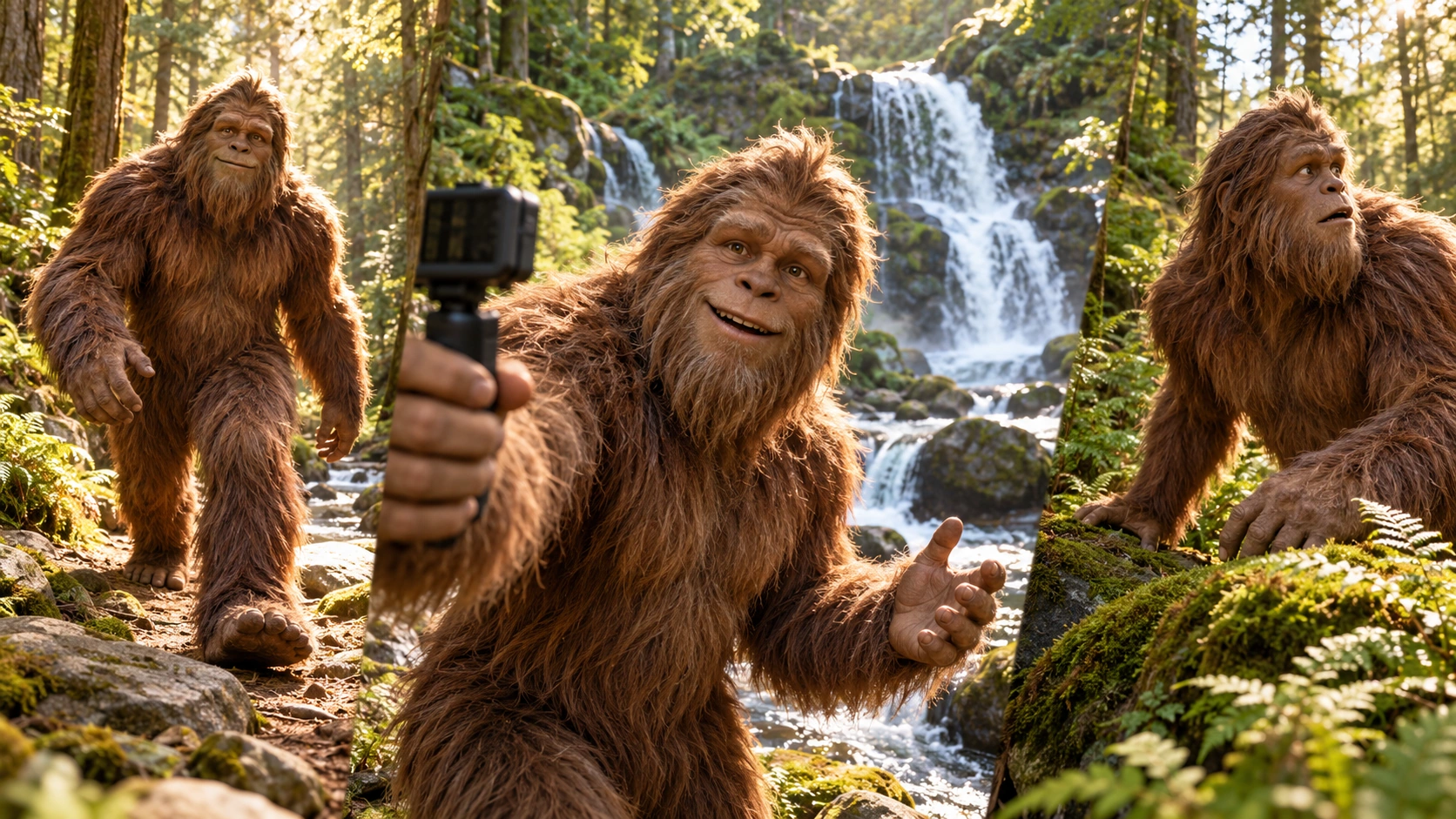
Choose Text to Video for a scene written entirely in words: setting, light, camera view and one creature action. If a photograph should guide the look, choose reference-based video mode and upload it there. Keep each brief short enough to picture clearly.
Choose the direction
Pick a tone such as vlog, forest encounter, comedy or nature-documentary-inspired. Adjust the available model controls, then reread the editable prompt. Decide whether the shot should feel handheld, observational or staged for a social post.
Check the quote and review
The live credit quote appears before you commit. Sign in, submit the generation job, then open History to watch the result and compare attempts. Each clip is fictional, so judge pacing, framing and mood rather than realism.
What you get back
Prompt-led fictional scenes
Write a text prompt and let the Bigfoot Video Generator build a short fictional sequence from it. Vlog framing, forest encounters, comedy beats or documentary-style pacing all begin as words you control and can edit before submitting.
Optional image reference
Use reference-based video mode when a photo should guide the terrain, lighting or character. It supplies a visual starting point for the scene. Text to Video has no reference-media input and uses your written description instead.
Generation jobs and History
Each run becomes a generation job you can track. Results land in History so you can revisit earlier attempts, compare takes and keep the strongest version of your Bigfoot gag without rewriting the prompt from scratch.
One idea, several posts
The trail-cam wave
A grainy night camera catches a large shape stepping past a tree, pausing to wave at the lens. Caption it as a fake trail-cam clip for a running weekend series.
The shaky vlog reaction
A hiker films a quiet forest path, hears a branch snap and turns the camera toward rustling ferns. The joke is the reaction, not the reveal, so keep the creature partly hidden.
The deadpan documentary
A calm narrator-style setup describes an ordinary mossy clearing while a fictional creature casually crosses the background. Play it straight for a dry comedy post.
Before you generate
- Write the shot first, then the creature: camera distance and movement matter as much as the subject.
- Avoid promising dialogue in the prompt unless you accept it may not appear.
- Check the live credit quote before submitting, and keep one strong attempt in History as your reference point.
Make the setting do part of the storytelling
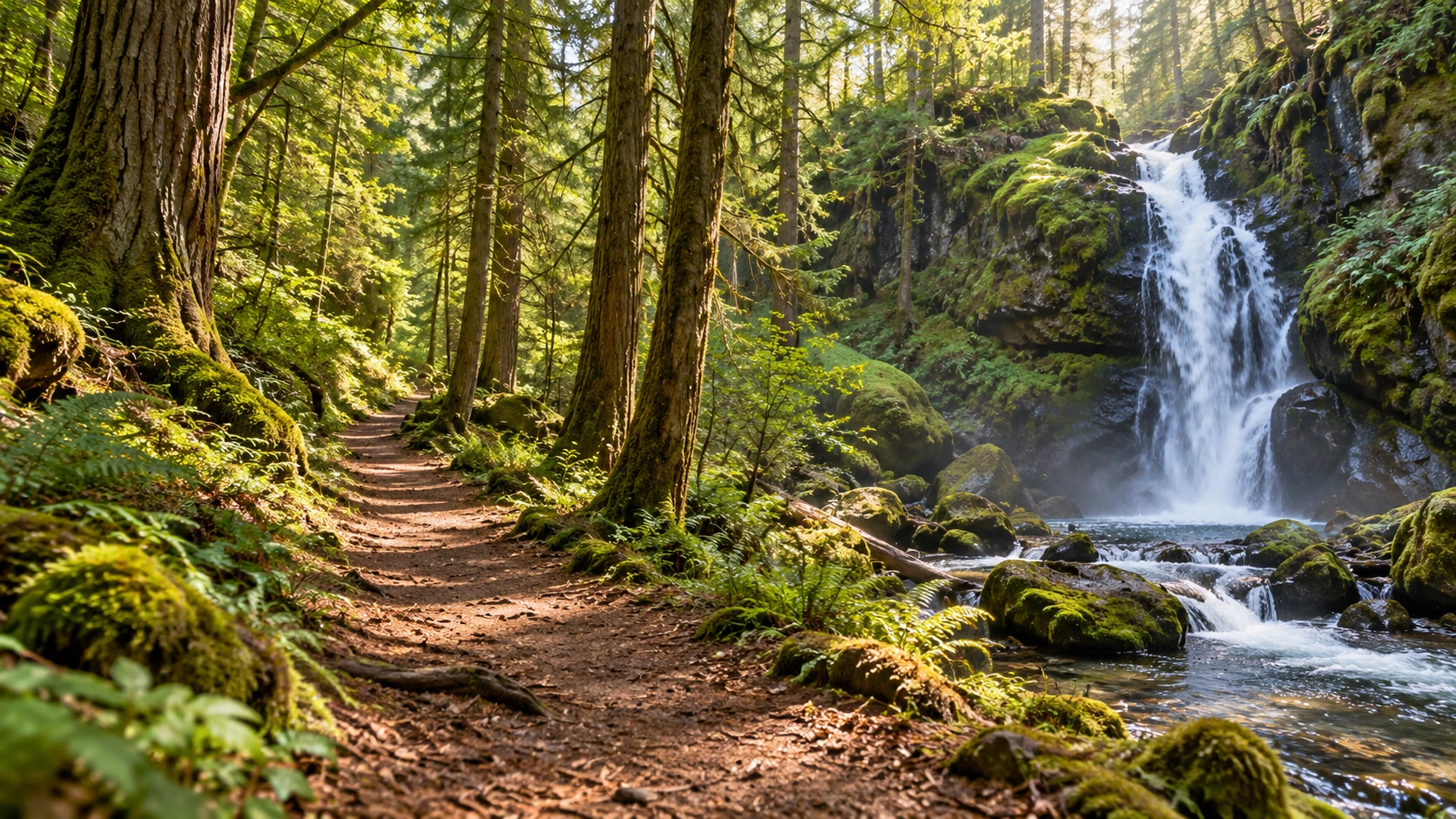
An empty trail tells you where a character could arrive and which direction the camera can see. The waterfall preparation image has a clear path, depth between the trees and a strong background feature. Use one or two of those details in the brief instead of describing every leaf. Then choose a single action: the creature approaches, notices the lens or makes a friendly gesture. The three-beat plan shows possible moments along that route. A short generation does not need to include all of them. Select the one that carries the joke or mood and give it enough time to register.
A selfie composition changes the story because the creature is now addressing the viewer. Keep the face close enough to read, but leave space for the hand and camera grip if those belong in the shot. The waterfall still shows a camera and a thumbs-up, while the preview is a separate wetland selfie scene. For your own attempt, choose the setting that serves the action and keep it consistent. Watch for changes to the creature's size, hand anatomy and background position through the full clip. If the action is lost in camera shake, request a steadier view before adding more dialogue or a second character.
Bigfoot Video Generator questions
What does the Bigfoot Video Generator make?
It produces fictional short videos from a text prompt or an optional image reference, built around Bigfoot-themed scenes. The clips are invented entertainment for social posts, not evidence of a real creature.
Can I upload a photo as a reference?
Yes, in reference-based video mode. Upload an image when a particular landscape or character appearance matters. Choose Text to Video for a scene described entirely in words; that mode uses no uploaded reference.
Can I choose the tone or style?
You can steer tone through the prompt and adjust the model controls that are available. Common directions include vlog, forest encounter, comedy and nature-documentary-inspired framing, but results vary.
Will the video include spoken dialogue?
No dialogue is guaranteed, and clip length is not fixed. Treat the output as a visual scene and plan captions or voiceover separately if your post needs them.
How does the credit quote work?
Draft your forest scene
Write one clear Bigfoot moment, set the tone and check the quote before you generate.
Create a Bigfoot videoContinue with a related creative guide


youdot.app · Updated
What's new on this page
- — Added editable example prompts and separate drafts for text and reference modes, with an action to restore the example.
- — Page content published. Updated page copy and content. Updated page images or videos. Updated page generator or navigation settings.