
Develop Product and Design Visuals with Flux
Flux for Realistic Photos, Ads, Posters, and Product Visuals
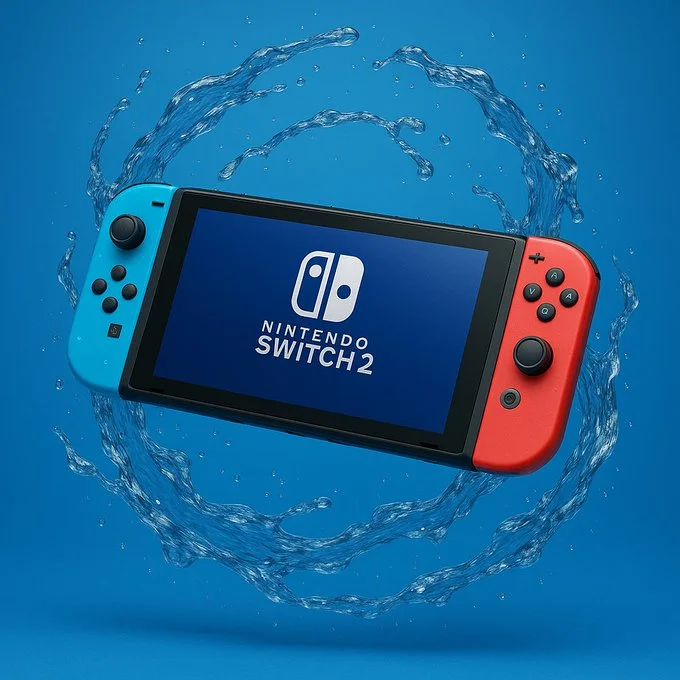
For a Flux product concept, specify the product shape, material, key detail and setting. Keep logos and claims accurate, allow room for your own typography, and review the result before using it in an advertisement.
Verified prompt
Verified prompt
Verified prompt
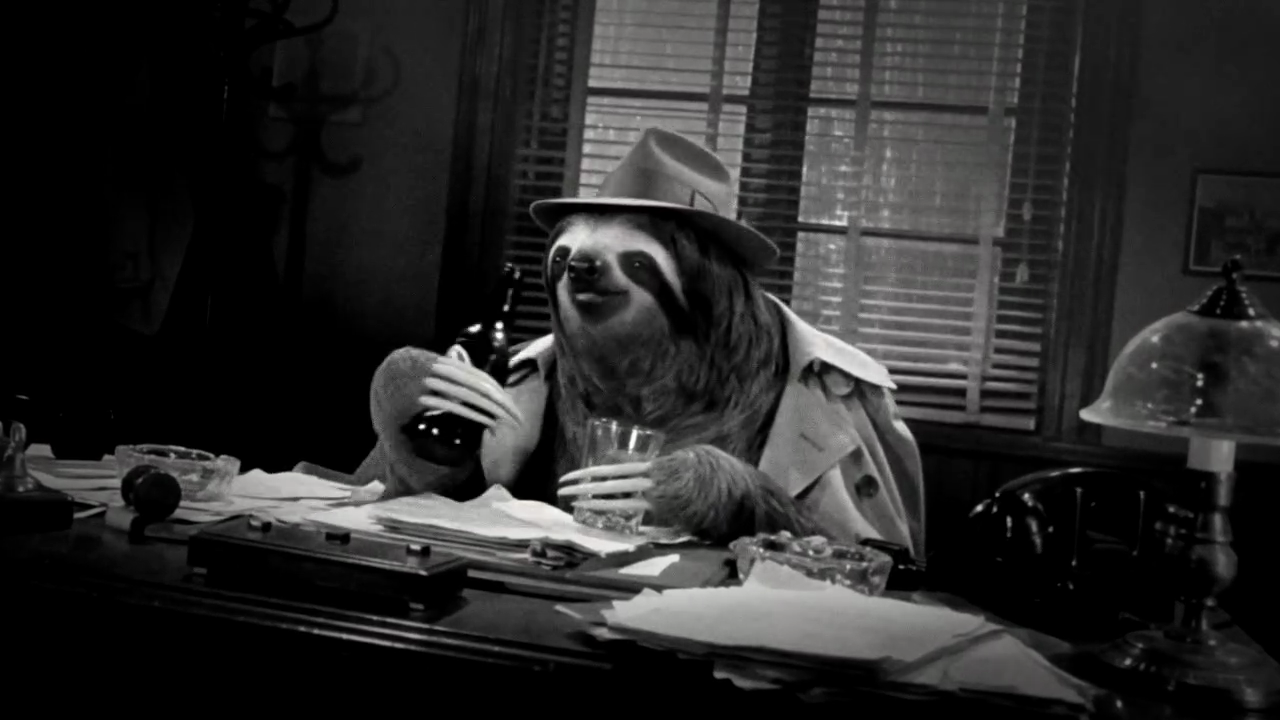
Verified prompt
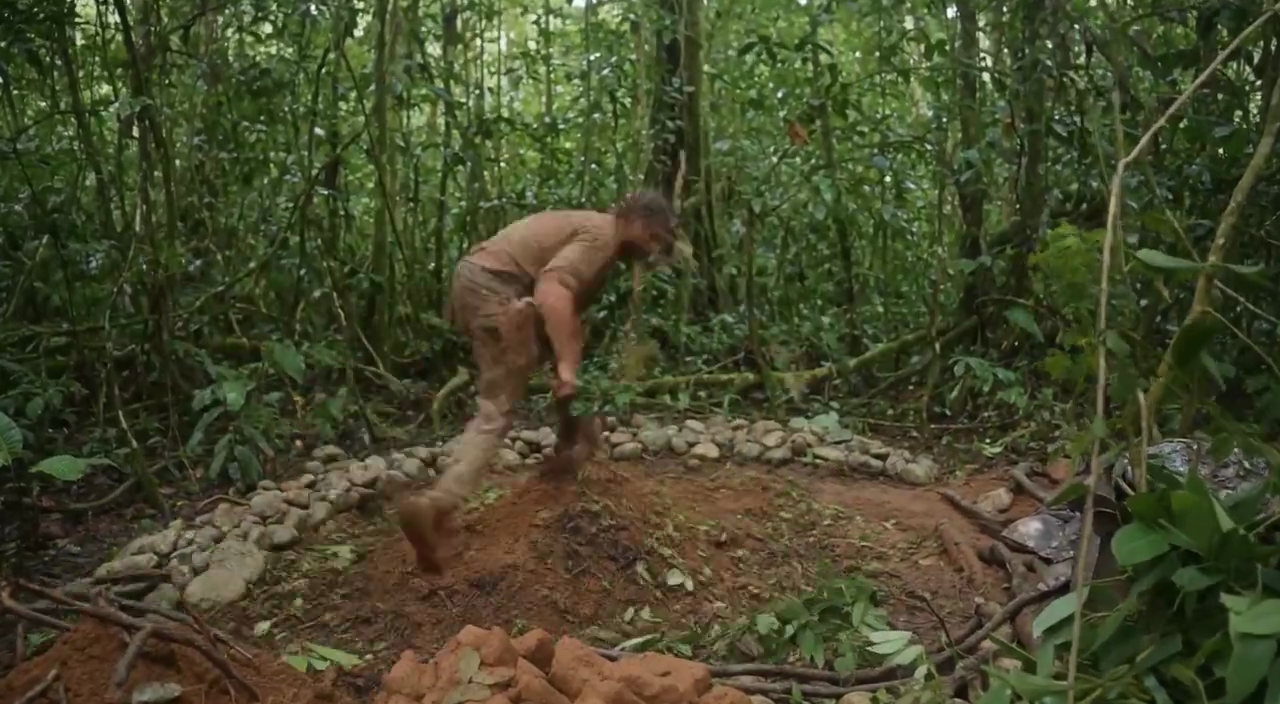
Verified prompt
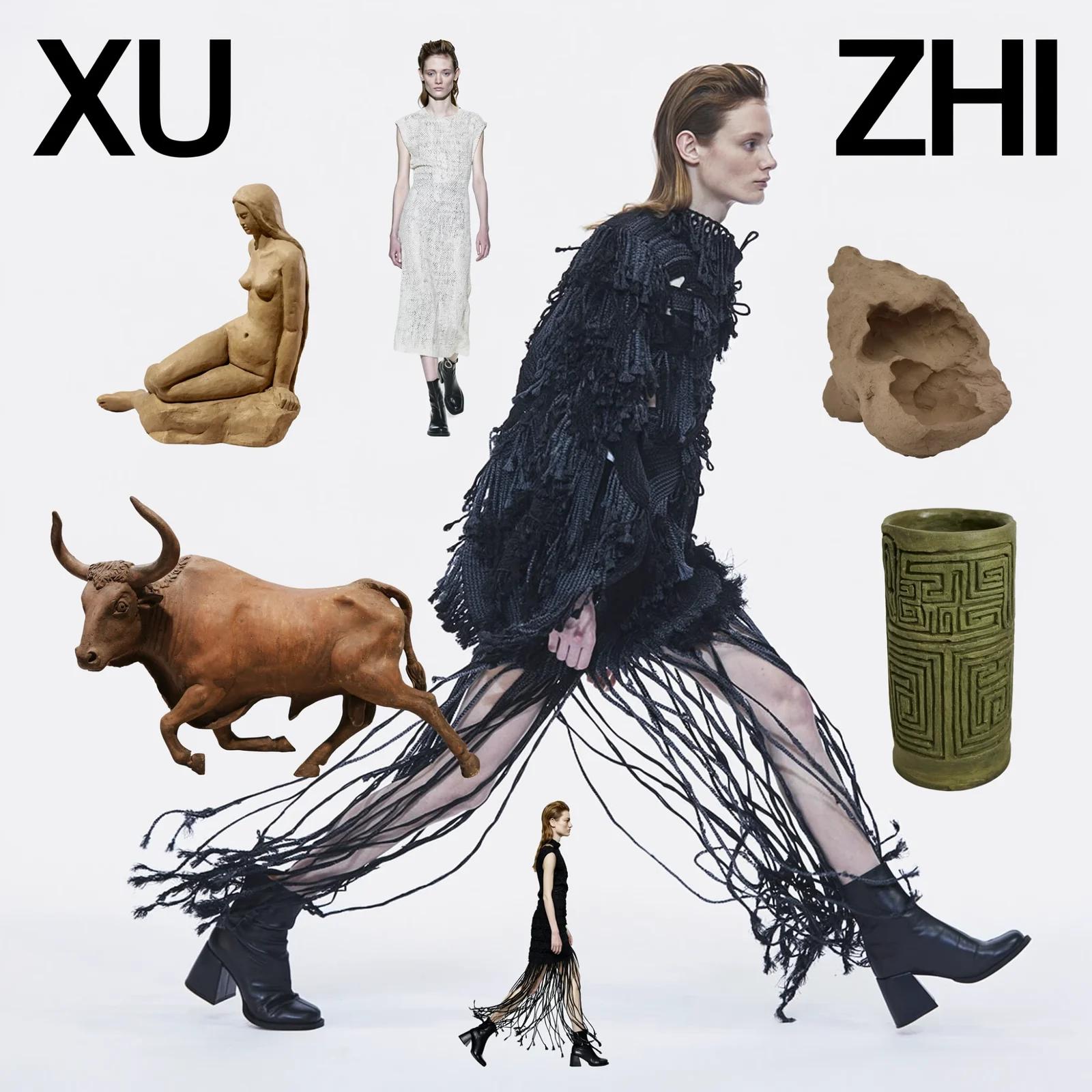
Verified prompt
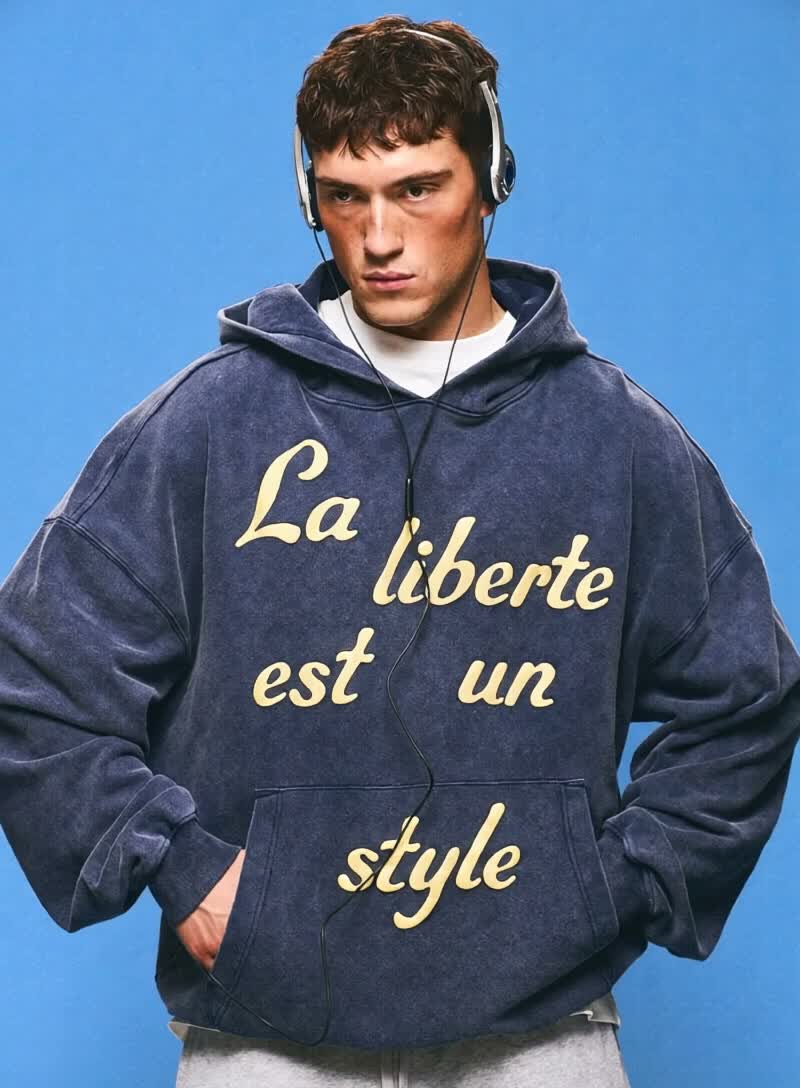
Verified prompt
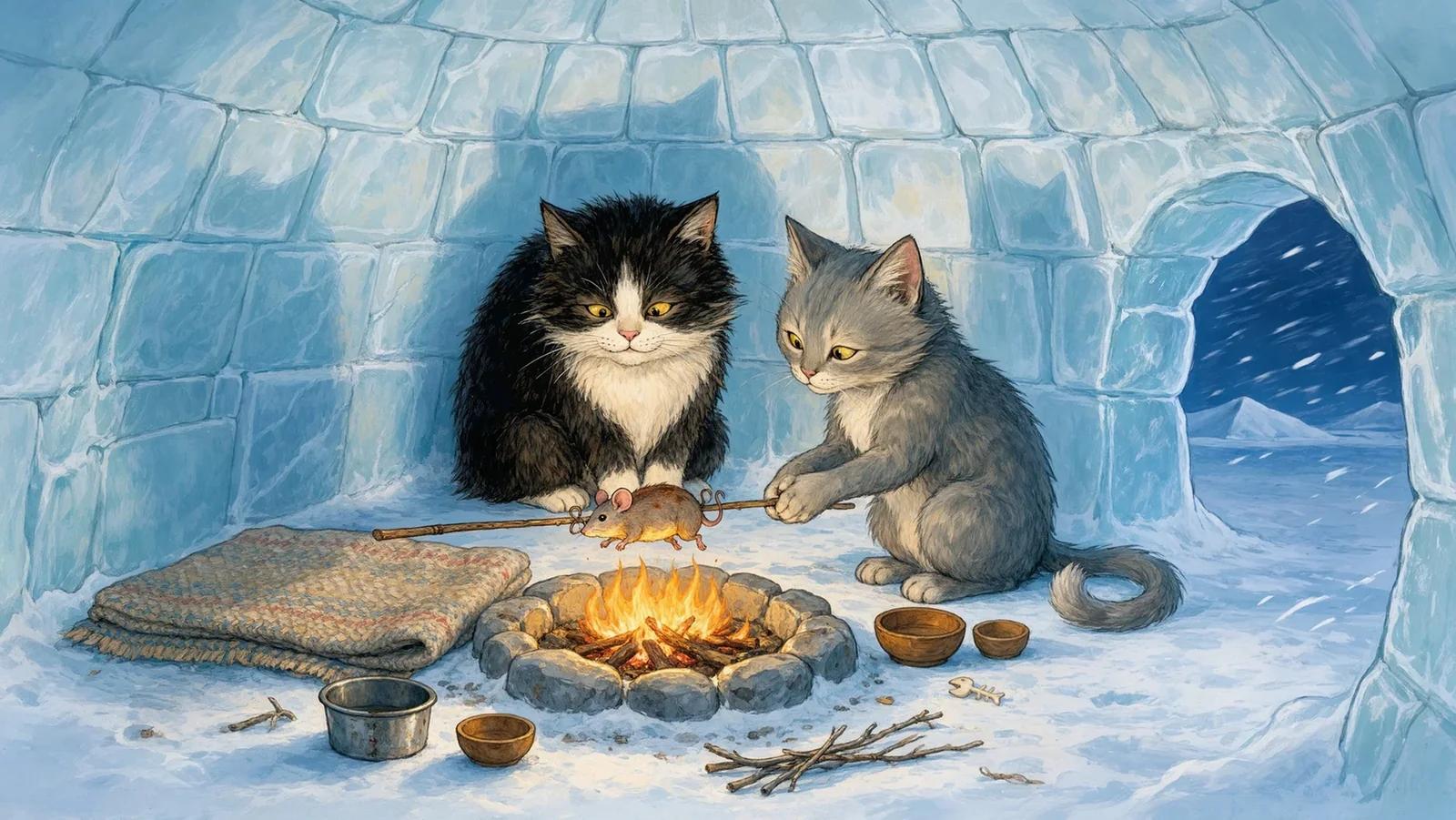
Verified prompt
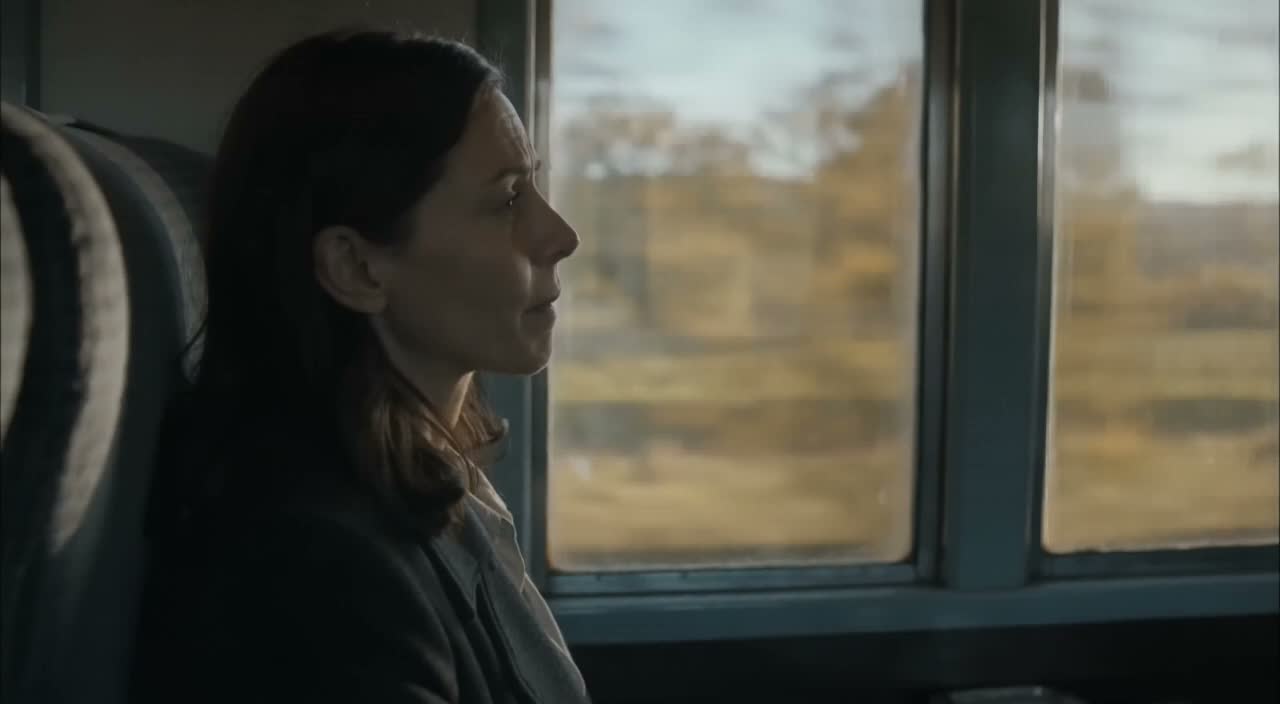
Verified prompt
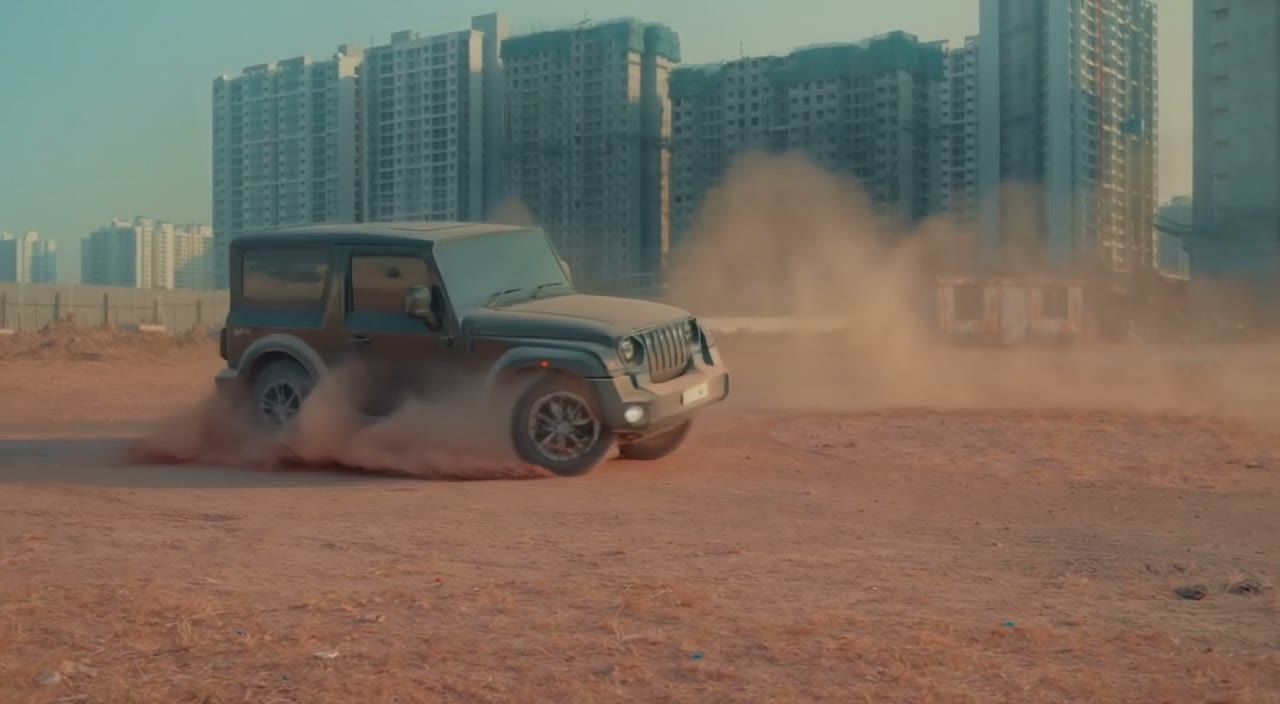
Verified prompt

Verified prompt
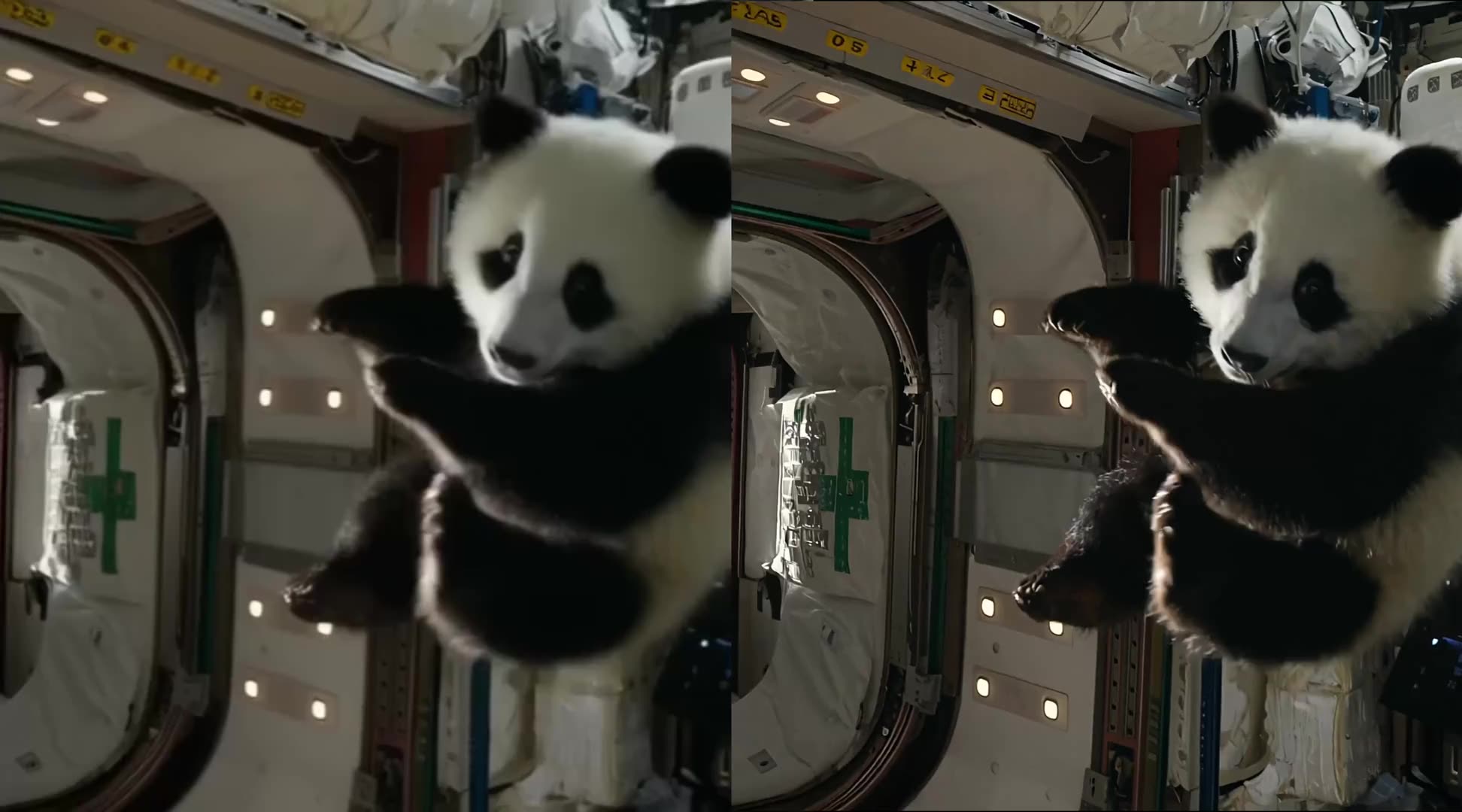
Verified prompt
Explore Image Workflows
Explore the Flux workflow and compare it with the related image pages. The generator is the source of truth for current model access and settings. Use the prompt library to study published results and the model that created them.
Flux: Create and Edit Professional Visuals
Start your Flux image brief with a source image you have permission to use. Name the area to change and the colors, proportions or objects to preserve. Reference count and editing support depend on the selected model.
Choose only the resolution and aspect ratio shown for the selected model. Check framing, fine details and any text in the completed image. A larger output size does not guarantee a more accurate result.
Explore Flux
From a Brief to a Reviewed Image: The Flux Workflow
Allow time to inspect each image result and refine your brief. Processing time varies by model, request and service load. Change one direction at a time so that you can judge which edit improves the result.
Enter prompt or upload image
Start your Flux image brief with a source image you have permission to use. Name the area to change and the colors, proportions or objects to preserve. Reference count and editing support depend on the selected model.
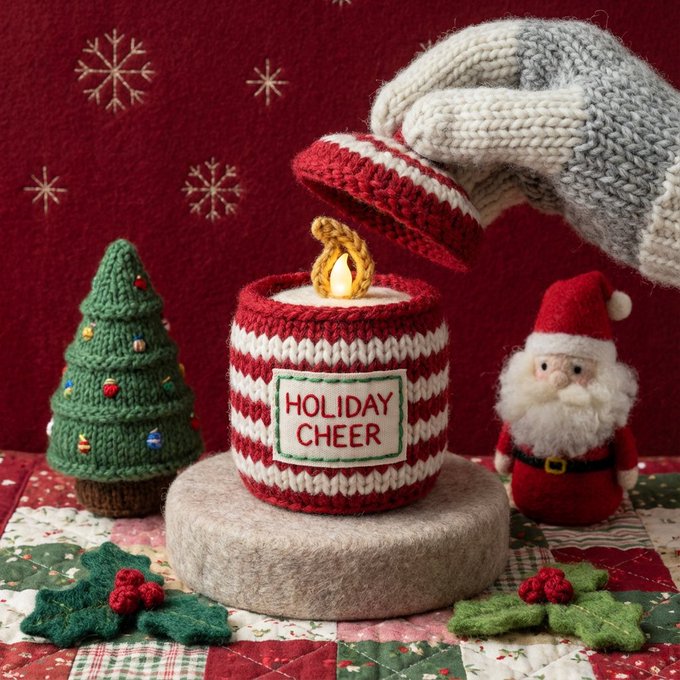
Review Availability, Settings and Credits
Allow time to inspect each image result and refine your brief. Processing time varies by model, request and service load. Change one direction at a time so that you can judge which edit improves the result.
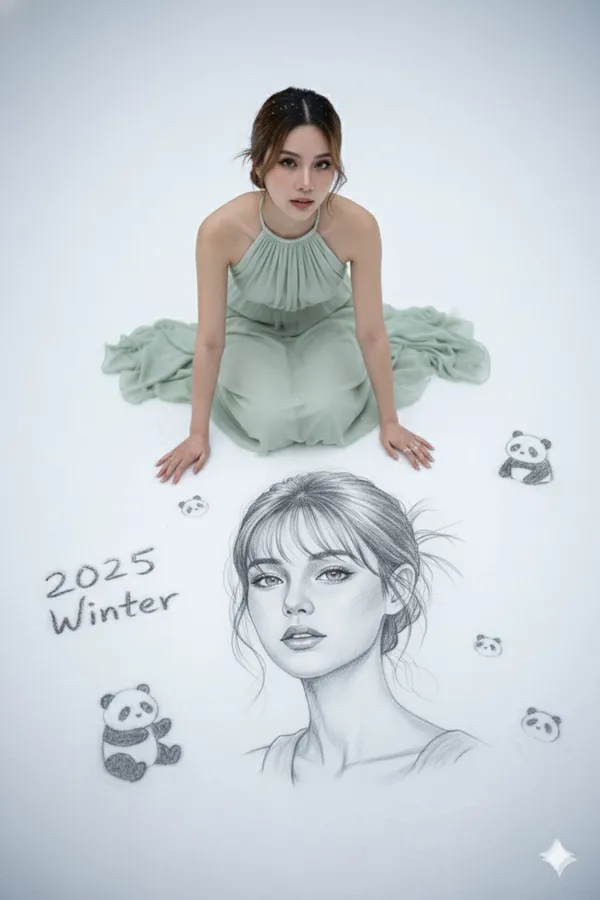
Review and Download Completed Results
When a request completes, inspect the image in History and download the result you want to keep. Review the composition and any unintended details before sharing it with your team or publishing it.
Build Your Flux Image Brief
For a Flux product concept, specify the product shape, material, key detail and setting. Keep logos and claims accurate, allow room for your own typography, and review the result before using it in an advertisement.

Generate and Edit Images in One Flux AI Workflow
Choose only the resolution and aspect ratio shown for the selected model. Check framing, fine details and any text in the completed image. A larger output size does not guarantee a more accurate result.
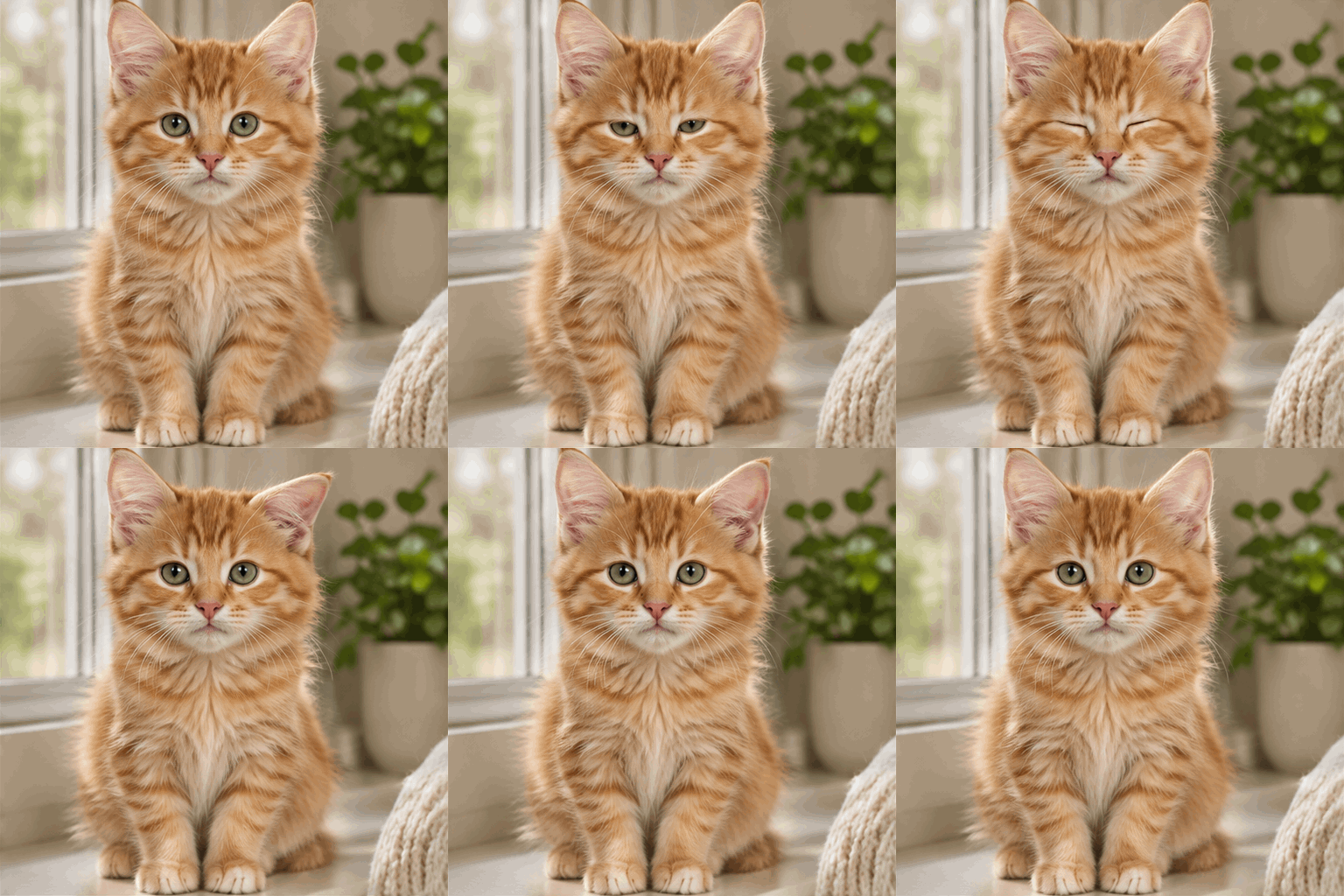
Use References to Explain the Intended Result
List the details that matter in your Flux image brief: identity, shape, colors, clothing and background. Use supported references where appropriate and compare every result; exact consistency is not guaranteed.
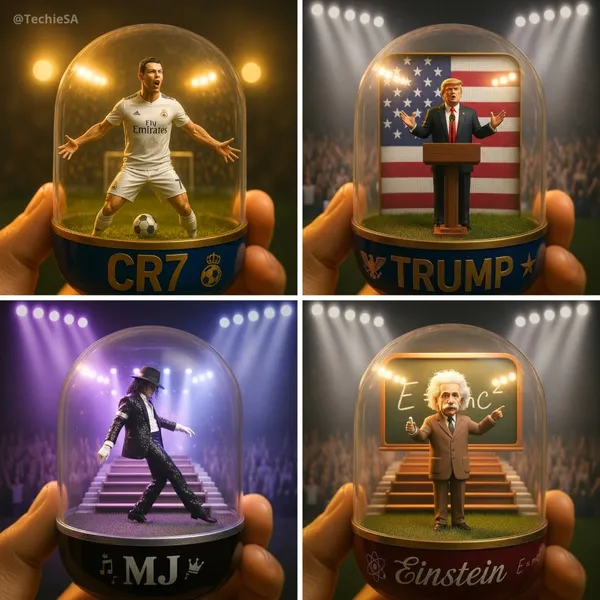
Check Details Across Every Result
List the details that matter in your Flux image brief: identity, shape, colors, clothing and background. Use supported references where appropriate and compare every result; exact consistency is not guaranteed.
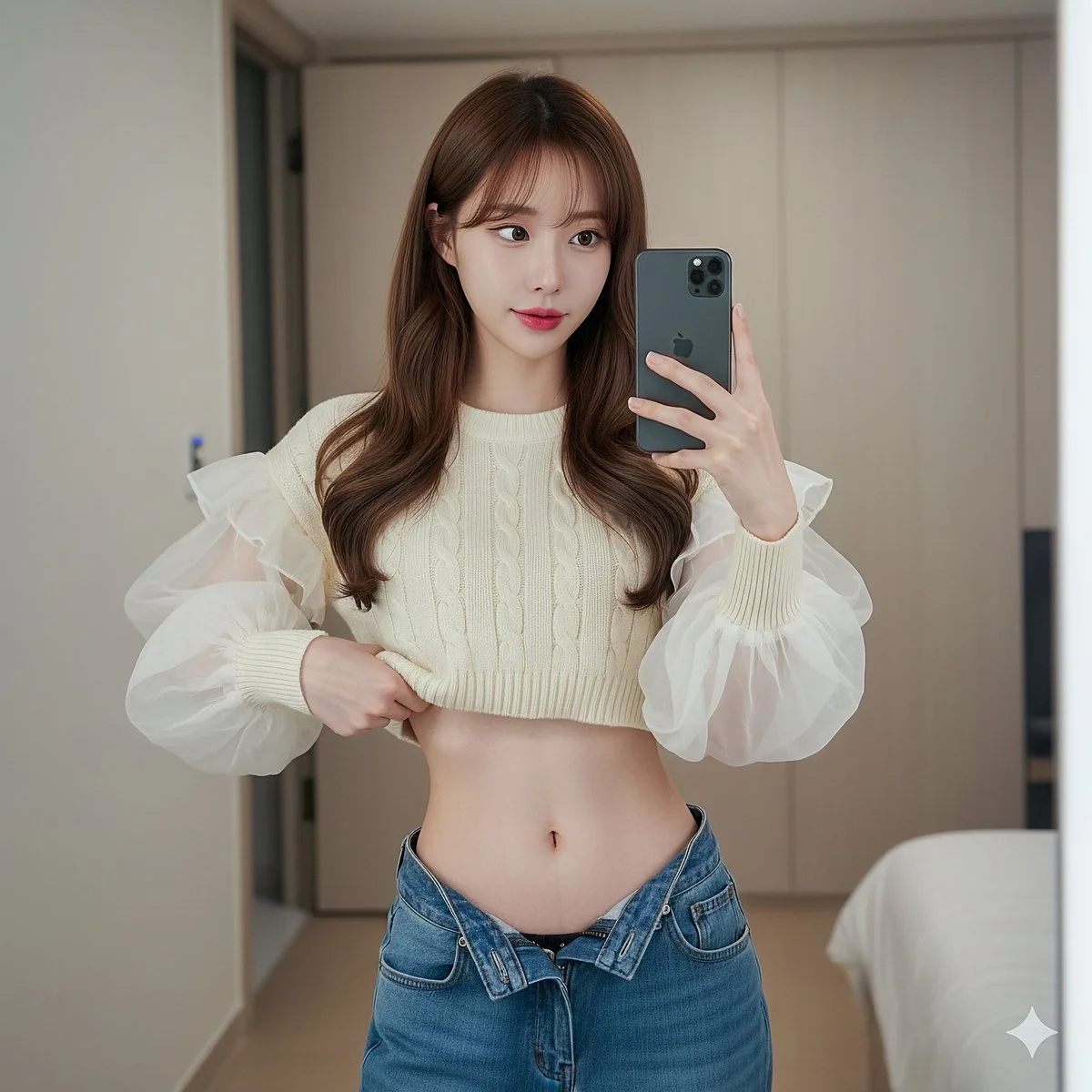
Clear Text, Posters, Ads, and Branded Visuals
Start your Flux image brief with a source image you have permission to use. Name the area to change and the colors, proportions or objects to preserve. Reference count and editing support depend on the selected model.
A Clearer Creative Brief for Flux
Allow time to inspect each image result and refine your brief. Processing time varies by model, request and service load. Change one direction at a time so that you can judge which edit improves the result.

High-Quality & Controlled Editing
Choose only the resolution and aspect ratio shown for the selected model. Check framing, fine details and any text in the completed image. A larger output size does not guarantee a more accurate result.
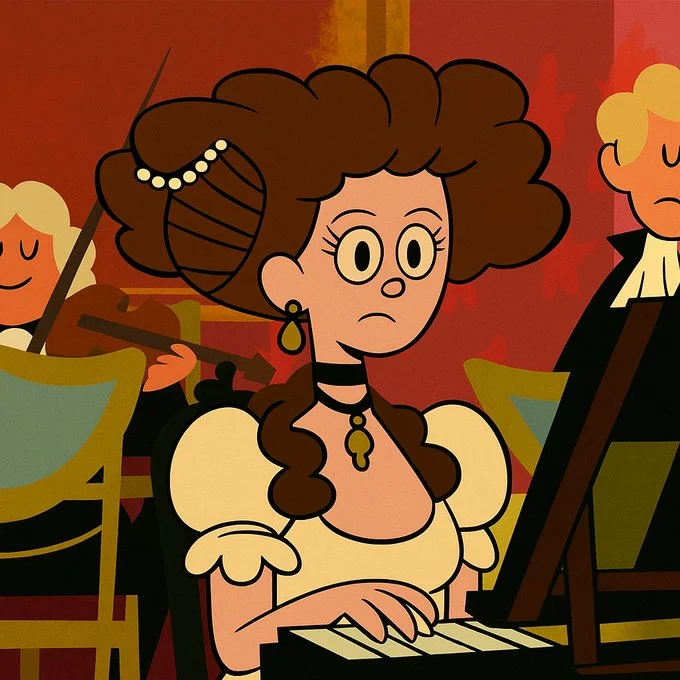
Social Media & Advertising
For a Flux product concept, specify the product shape, material, key detail and setting. Keep logos and claims accurate, allow room for your own typography, and review the result before using it in an advertisement.
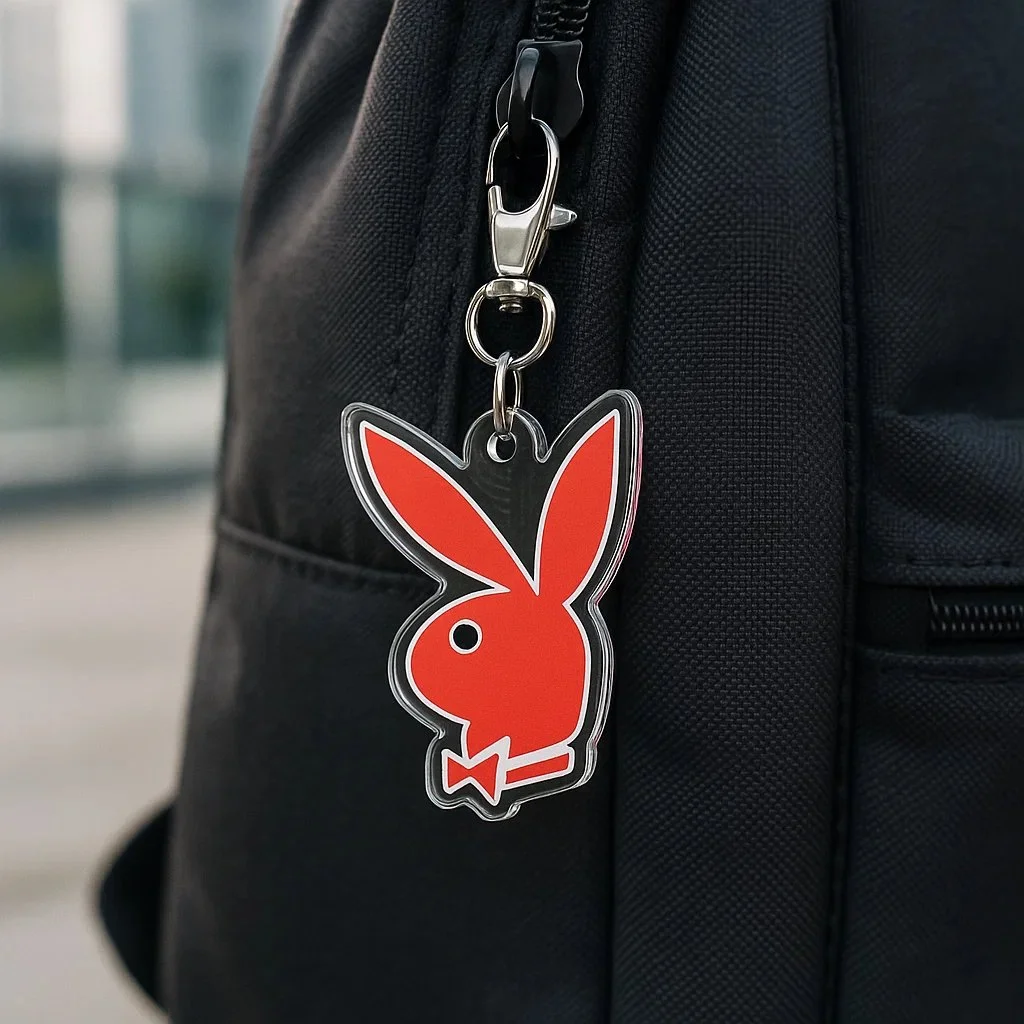
Check Details Across Every Result
List the details that matter in your Flux image brief: identity, shape, colors, clothing and background. Use supported references where appropriate and compare every result; exact consistency is not guaranteed.
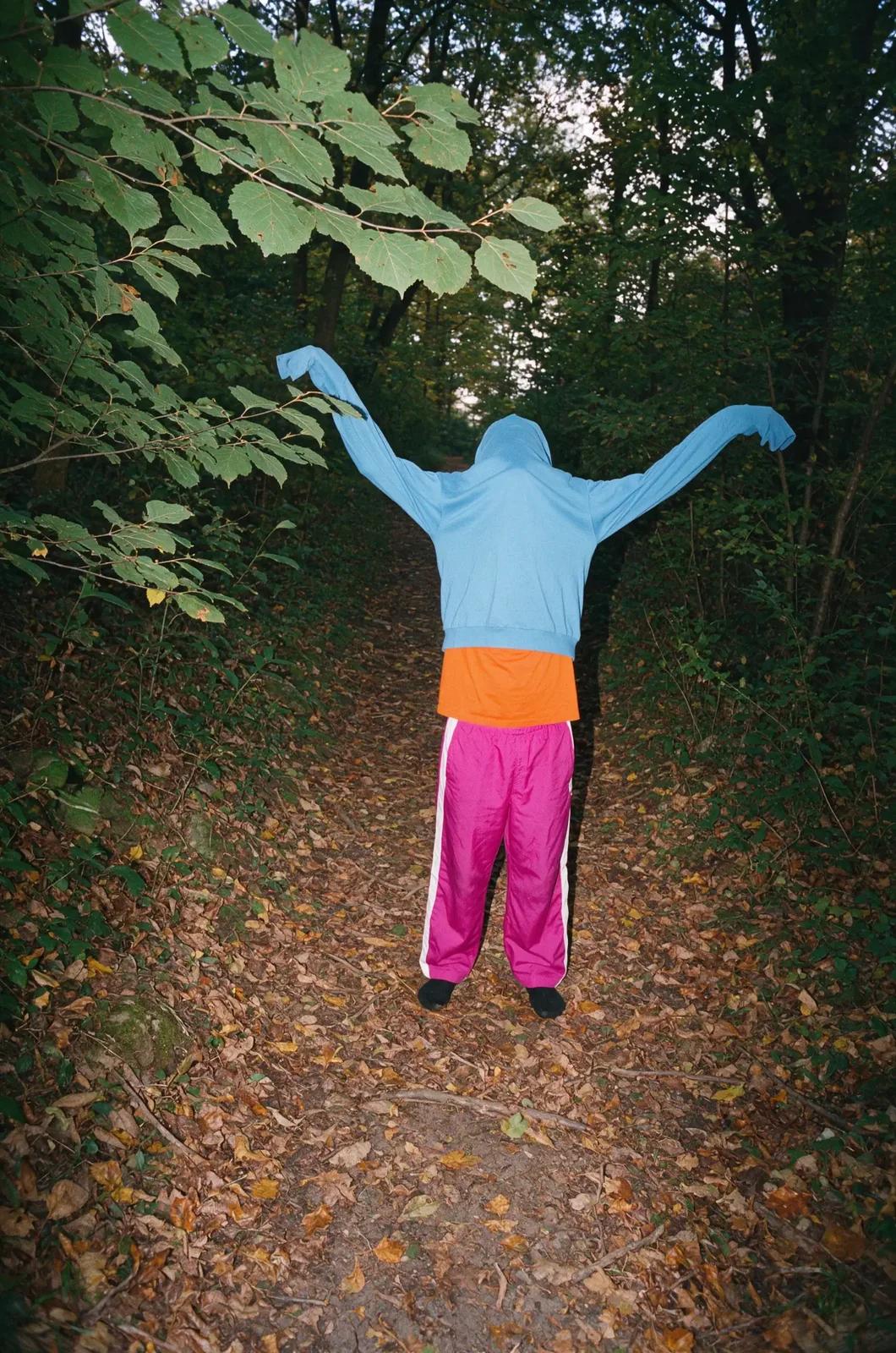
Efficient Production Workflow
For a Flux product concept, specify the product shape, material, key detail and setting. Keep logos and claims accurate, allow room for your own typography, and review the result before using it in an advertisement.
Creative Notes for Your Flux Image Brief
Give the main subject one clear action. For a Flux concept, a precise brief is easier to assess than a list of competing effects.

Flux Image Workflow: Questions & Answers
For a Flux product concept, specify the product shape, material, key detail and setting. Keep logos and claims accurate, allow room for your own typography, and review the result before using it in an advertisement.
This youdot page explains the Flux image workflow. It helps you write a focused brief and review the available inputs. Current access is shown in the generator; a model name on a guide does not mean it currently accepts requests.
Write your Flux image brief around a subject, composition, lighting and intended style. Add a material or texture when it matters. For edits, state one precise change and explain which parts of the source should remain intact.
Start your Flux image brief with a source image you have permission to use. Name the area to change and the colors, proportions or objects to preserve. Reference count and editing support depend on the selected model.
Use only the input modes and controls offered by the selected model. Describe the intended image clearly and add supported references when useful. This page does not promise separate motion-brush, audio-upload, restoration or editing tools.
List the details that matter in your Flux image brief: identity, shape, colors, clothing and background. Use supported references where appropriate and compare every result; exact consistency is not guaranteed.
You can request a refund within 10 days of purchase if you have unused credits from that purchase and provide a clear reason, subject to our Refund Policy. If eligible, an unused purchase can be fully refunded; a partly used purchase is refunded in proportion to its remaining unused credits. Fully used purchases and free or promotional credits are not refundable.
Credit validity depends on the pack, subscription or promotion that issued them. Review the purchase terms and expiration dates in Settings > Credits. A renewal or new purchase does not extend older credits. Use credits before their stated expiration; do not assume unused subscription credits roll over indefinitely.
Credits charged for a task that is confirmed as failed due to a system error are returned automatically. A task that is still processing has not yet been confirmed as failed. Check its status and your credit history before submitting again. If a confirmed failure still shows an unresolved charge, email support@youdot.app with the task ID.
AI results can vary, so a completed result that differs from your expectations is not automatically treated as a technical failure. Eligible completed image tasks can be submitted for credit refund review using the refund option where available; approval is required. For a video or another issue, contact support@youdot.app with the task ID and details. A credit refund returns credits, not money to your payment method.
Email support@youdot.app. For billing, include your account email and order ID; for generation, include the task ID, issue description and relevant screenshots. If you purchased as a guest, keep the original browser data and payment receipt so we can help locate the purchase.
Explore Your Next Flux Image Idea
Choose only the resolution and aspect ratio shown for the selected model. Check framing, fine details and any text in the completed image. A larger output size does not guarantee a more accurate result.
youdot.app · Updated
What's new on this page
- — Added editable example prompts and separate drafts for text and reference modes, with an action to restore the example.
- — Updated page copy and content.
- — Page content published.